WHAT TO EXPECT | Proctor PRO
Everything you need to get ready for your proctored assessment
Setting up takes about 5 minutes. This page walks you through exactly what you need, how to check your equipment, common questions, and what to expect on testing day.
Prepare your device
There's nothing to download. Integrity Advocate runs entirely in your browser. You don't need to install any software, browser extensions, or apps before your assessment. You just need a device with a camera, a browser, and a stable internet connection.
Device
Browser & internet
Camera & audio
Bring your photo ID
Before your assessment begins, you'll be asked to show an acceptable form of photo ID by your organization. A trained reviewer will confirm the ID belongs to the person taking the exam.

Test environment
To ensure a smooth and secure session environment, please review the following guidelines.
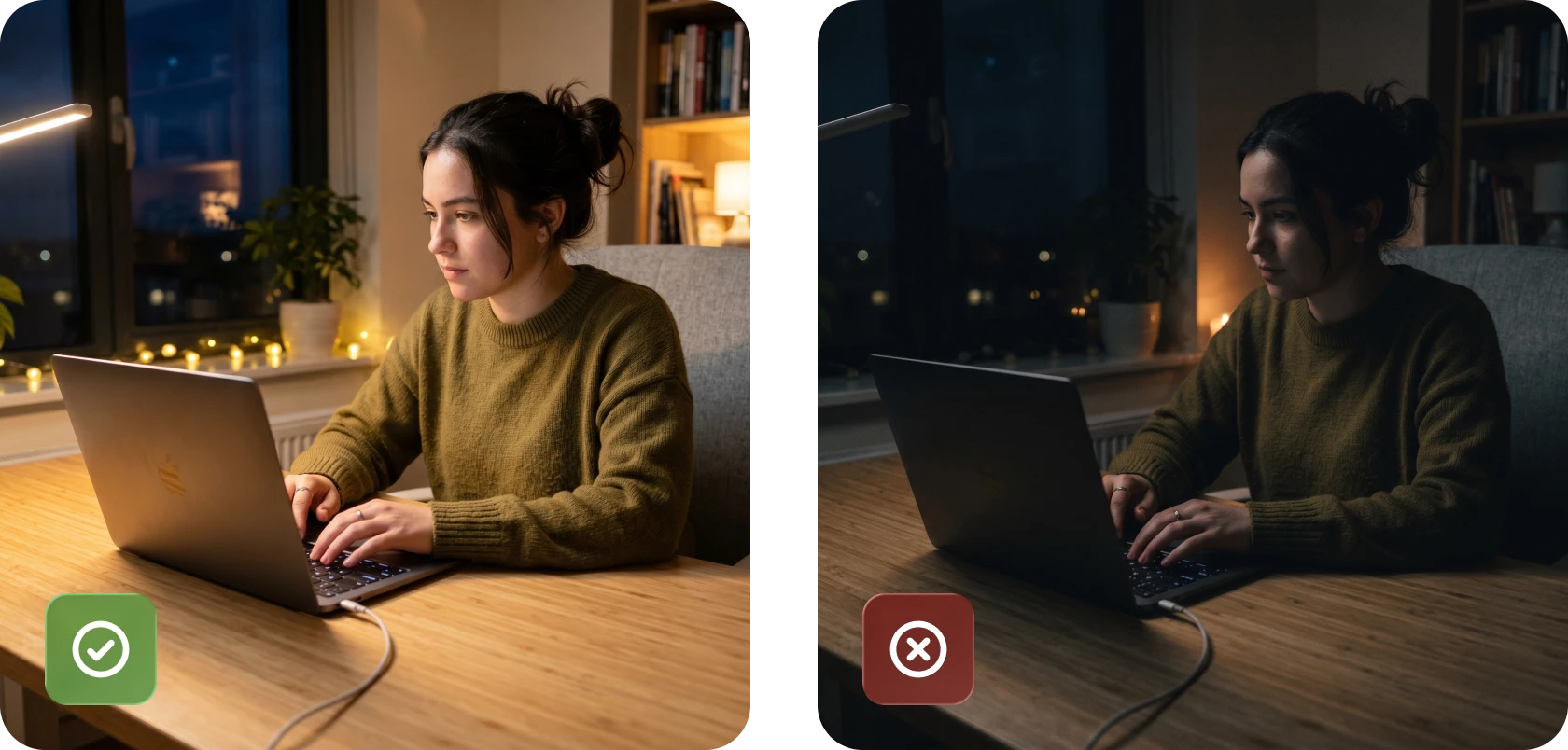
Good lighting condition
Make sure the room is well-lit so your face is clearly visible. If you are taking the assessment during day time, avoid sitting with a window behind you.
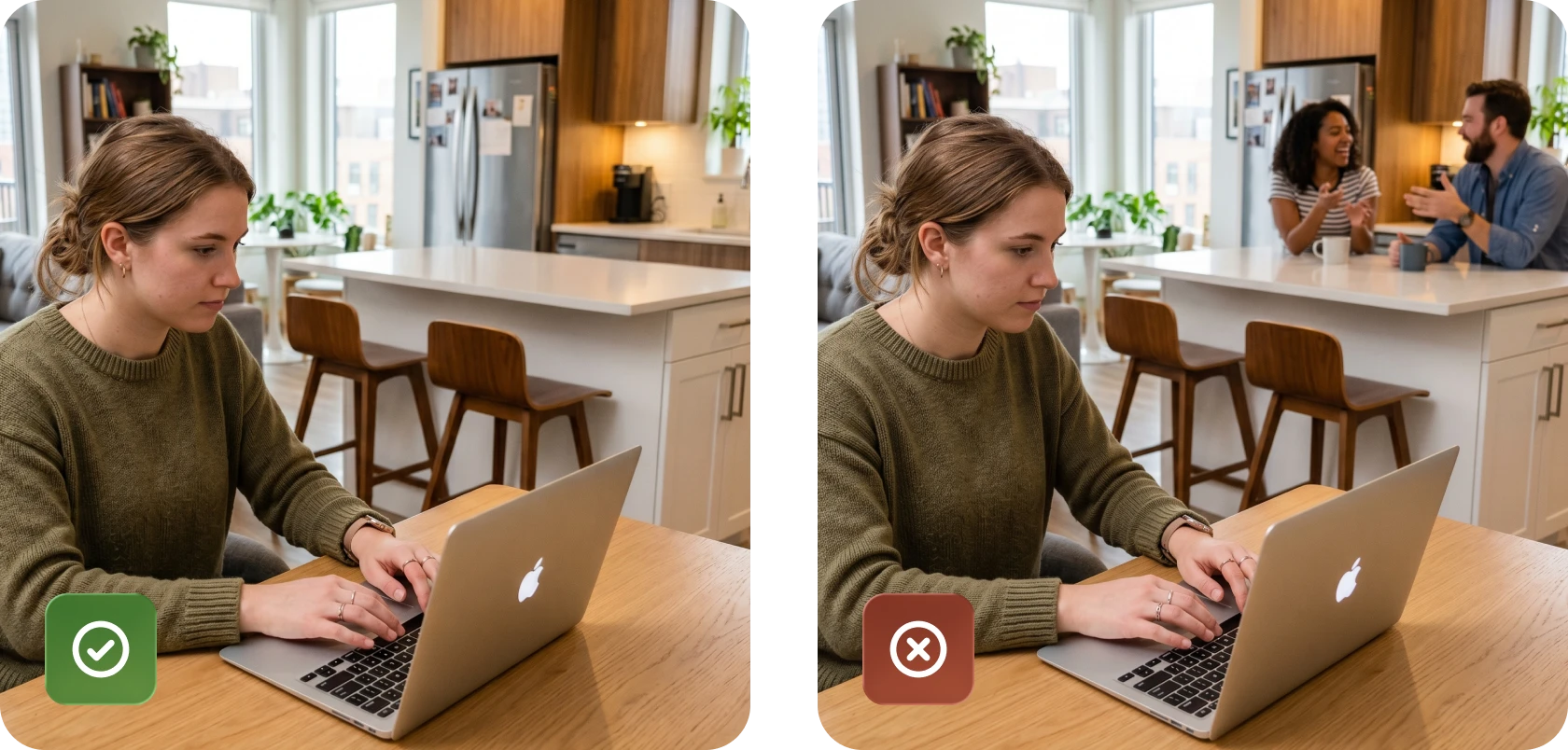
Quiet environment & free of other people
To ensure a distraction-free environment, confirm that you are alone and the space is quiet during the testing.
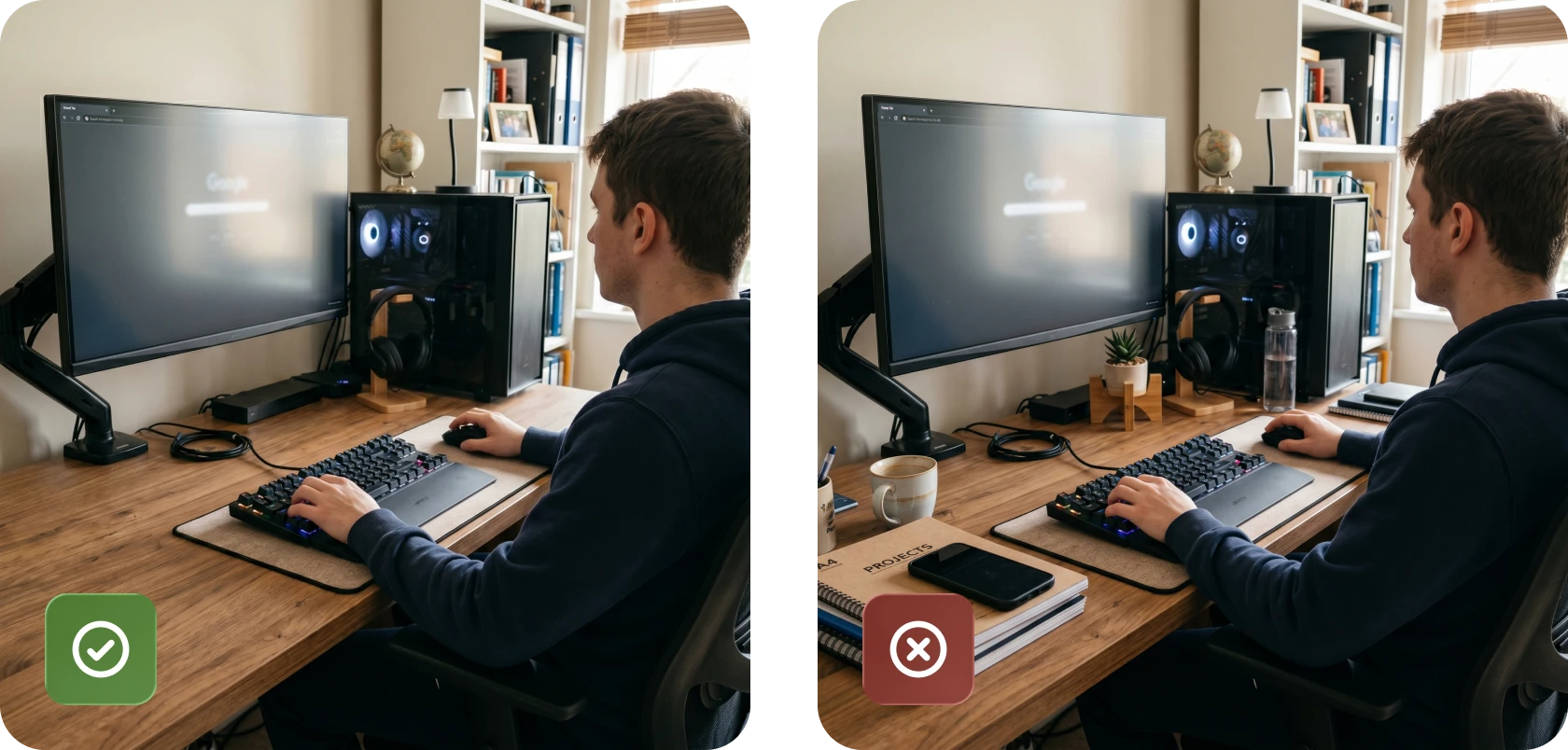
A clean desk
Make sure the area you are conducting your session (your desk and the surrounding area) is clear of any unauthorized materials.
Secondary camera and room scan
If you need to set up an additional camera or conduct a room scan for your upcoming session, please refer to the concise guide below to ensure everything runs smoothly.
Secondary camera
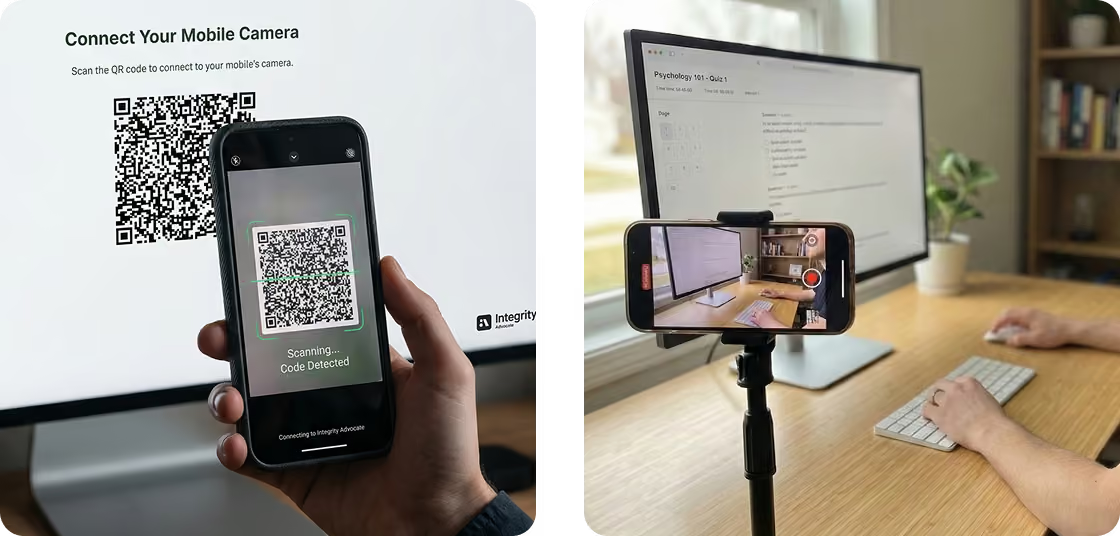
Scan the QR code that shows up on the screen and set your phone up as the second camera. Make sure to place your phone at an angle that can see your keyboard and the screen content at the same time!
Room scan + desk scan
Follow the brief video guide you see to do a full 360 degree scan of your session environment, and separately of your desk. Make sure that you don’t have any unauthorized items (eg. mobile phone, smart watch, notebook and etc...) near you during the scan.
Try Integrity Advocate
Familiarize yourself with our proctoring process before assessment day to ensure a smooth experience and avoid technical issues when it counts.
No data is collected or recorded during the practice session.

Assessment day
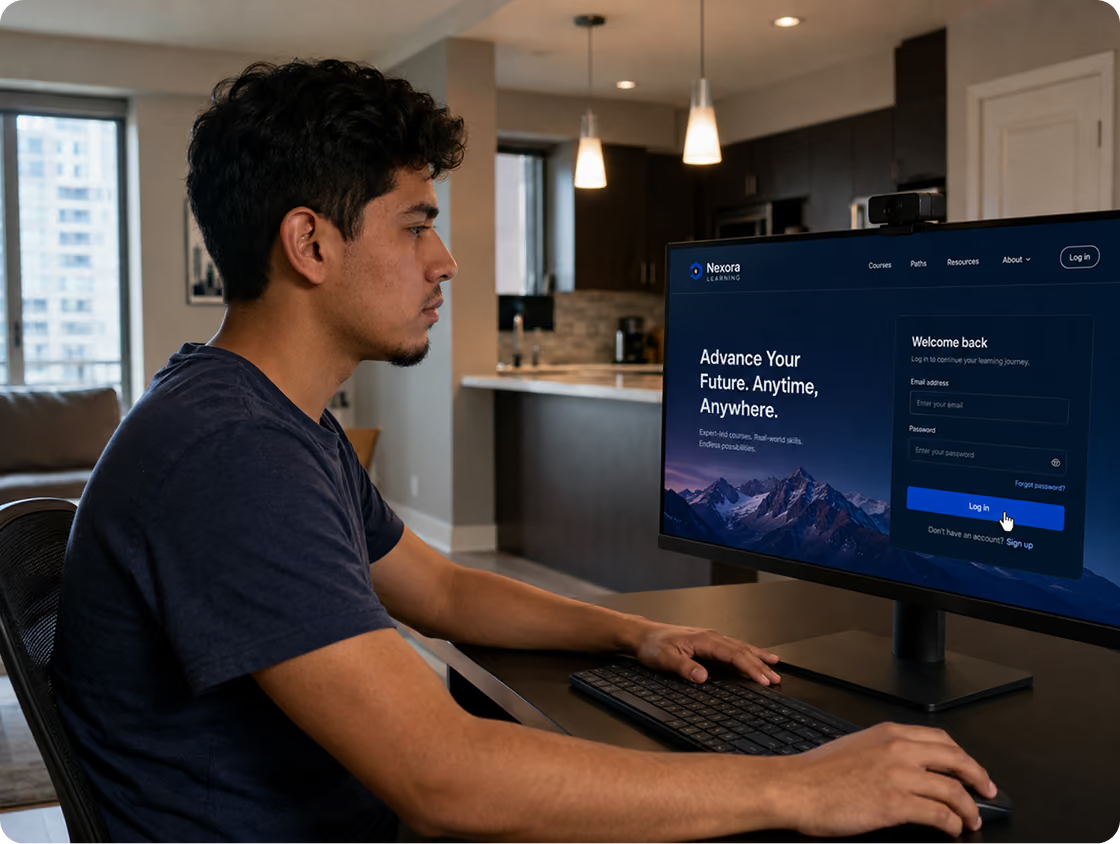
Our proctoring service launches directly in your browser; it needs no extra login and you will not need to open any separate app. During testing day, just log in through your program's platform, navigate to your exam page and begin your assessment as usual.
If you need proctor-related support during your session, you can reach out to us with the link below:
Live chat
Chat with our assistant for instant answers and be connected to a person if additional help is needed.
Email support
Fast, expert and nearly effortless. With industry-leading response times, we’ve got you covered.
Help center
Find answers to common questions, troubleshooting steps, and guidance for using Integrity Advocate.

ABOUT YOUR PROCTOR
Privacy-first proctoring that works with you
Integrity Advocate is the proctoring service your program uses to keep exams fair and secure. It launches automatically with nothing to install or sign into. Our goal is to be unobtrusive while keeping the process fair for everyone.
Real humans review flags
Your privacy is protected
No install, browser-based
Guided setup, no surprises
Frequently asked questions & Help Topics
Find answers to the most commonly asked questions from our clients.
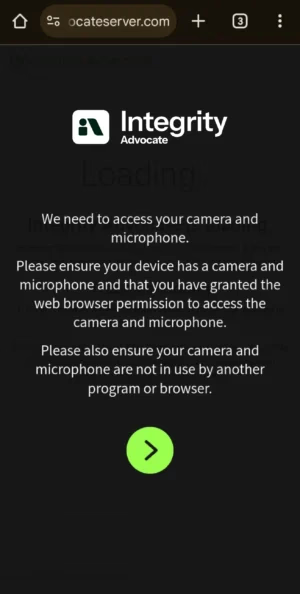
If your camera isn’t loading, please follow these troubleshooting steps in order:
1. Free Up Your Camera Close any other applications that might be using your camera (e.g., Zoom, Teams, FaceTime) and close other browser tabs.
2. Check & Reset Browser Permissions If you accidentally blocked the camera previously, you will need to reset your permissions:
- Click the Lock icon (🔒) located in the address bar next to the website URL.
- Locate the Camera setting and ensure it is set to “Allow” or click “Reset Permissions.”
- Refresh the page to apply the changes.
3. Still having trouble?
- Clear Cache: Clear your browser cache or perform a hard refresh, then try again.
- Check Device Settings: Ensure your computer’s operating system (Windows/macOS) has allowed the browser to access the camera in your privacy settings.
- Try a Different Device: Work-managed computers often have strict firewalls. If possible, switch to a personal computer.
Our team is available to support your learners all day, every day, with a comprehensive self-serve knowledge base and 24-hour live chat, email and phone support.
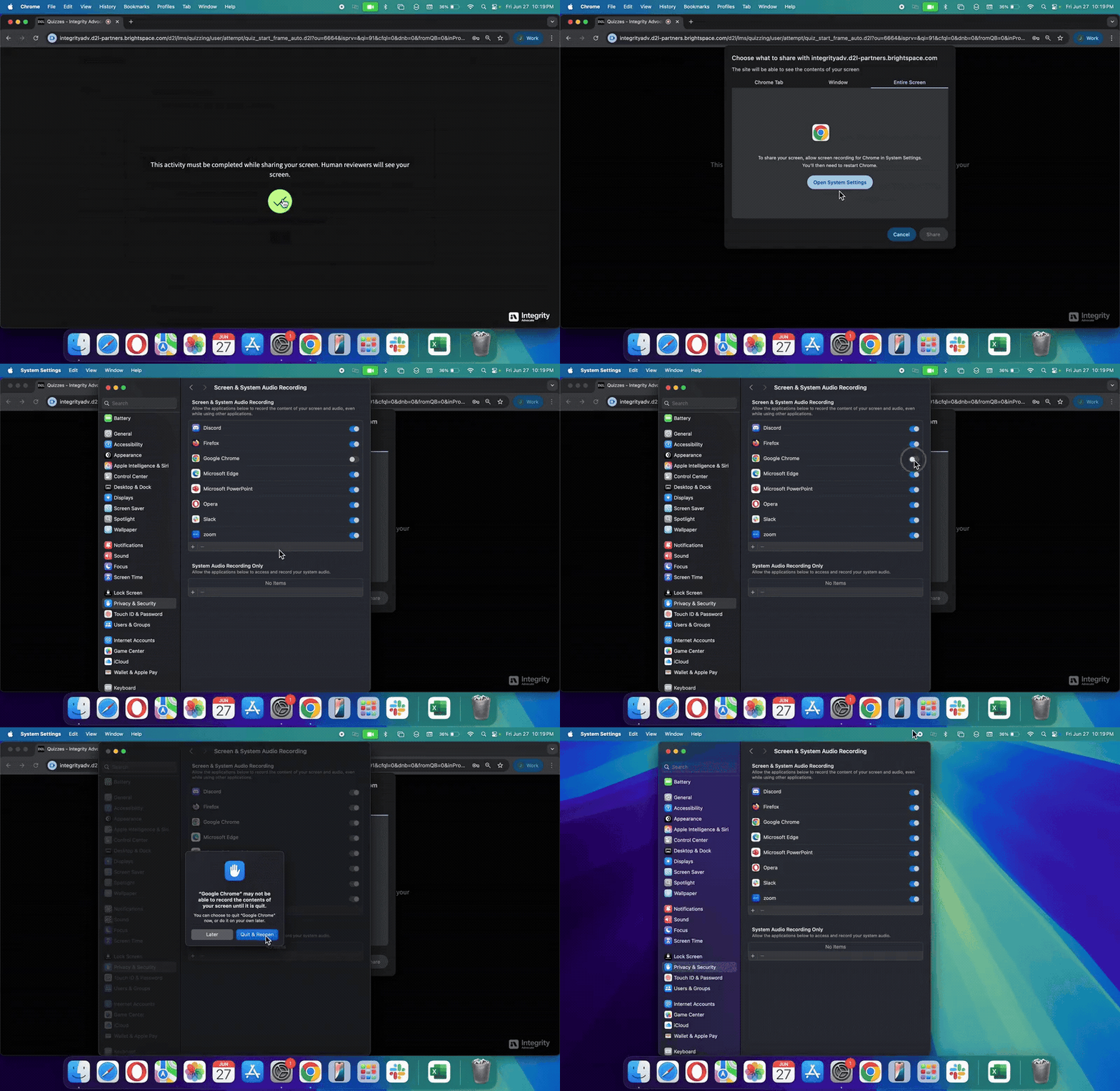
To successfully share your screen and allow audio recording during your session, follow these steps on your Mac:
1. When screen sharing is requested, you’ll see a prompt to share your screen. Click Open System Settings to continue.
2. Grant screen recording permission
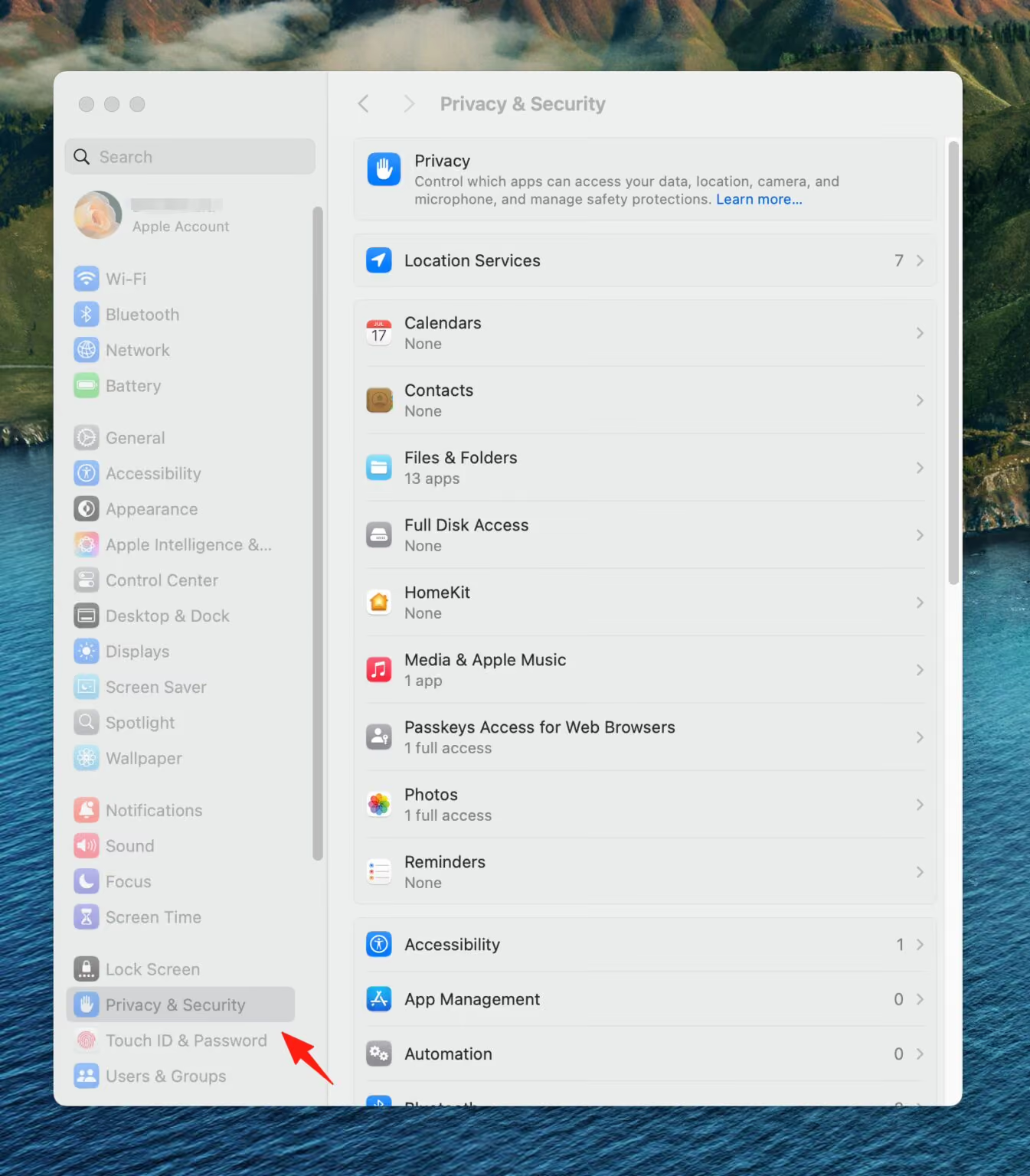
In System Settings → Privacy & Security → Screen & System Audio Recording
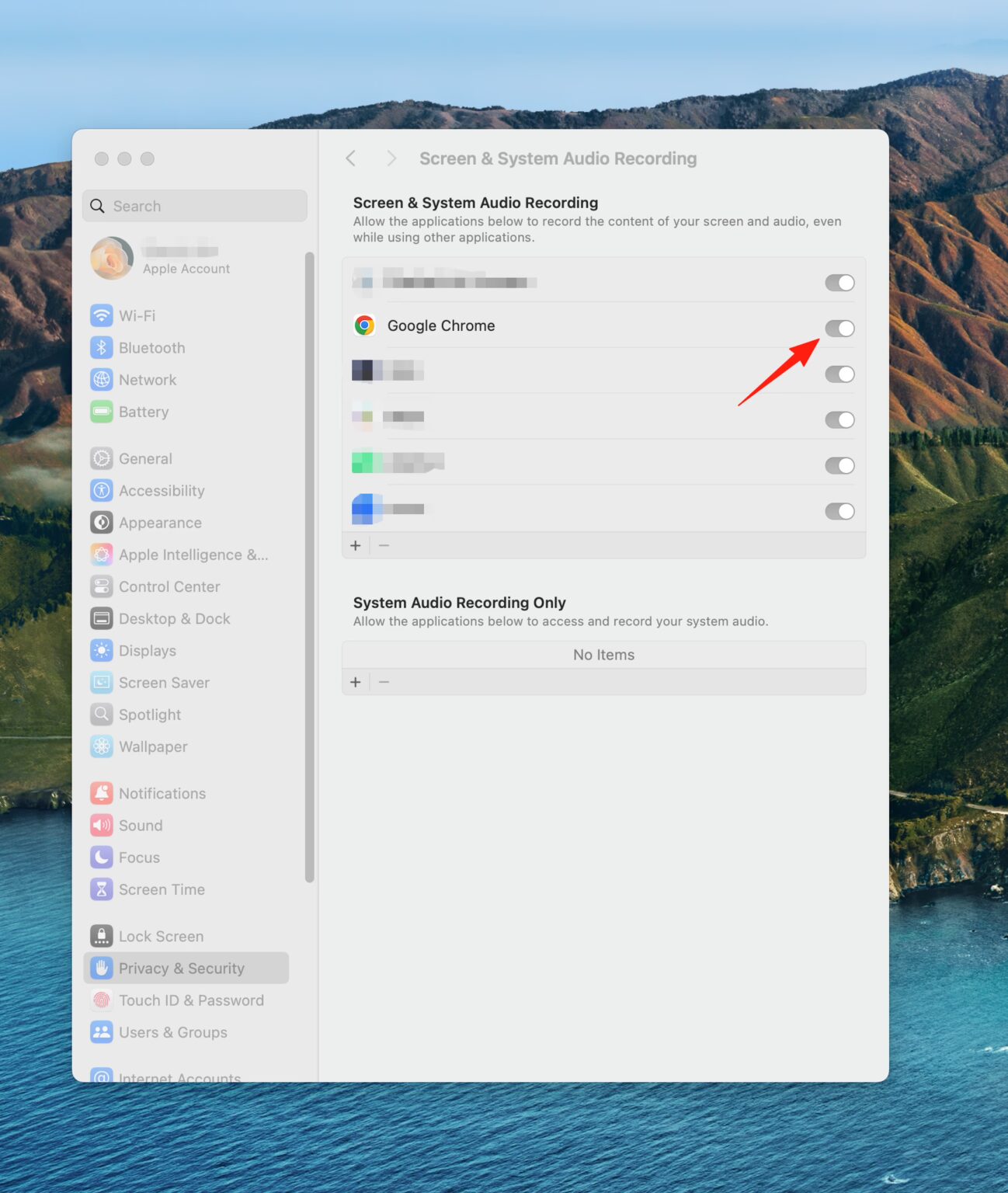
Make sure the browser you are using is toggled ON. ie Chrome
3. Restart Chrome to apply changes
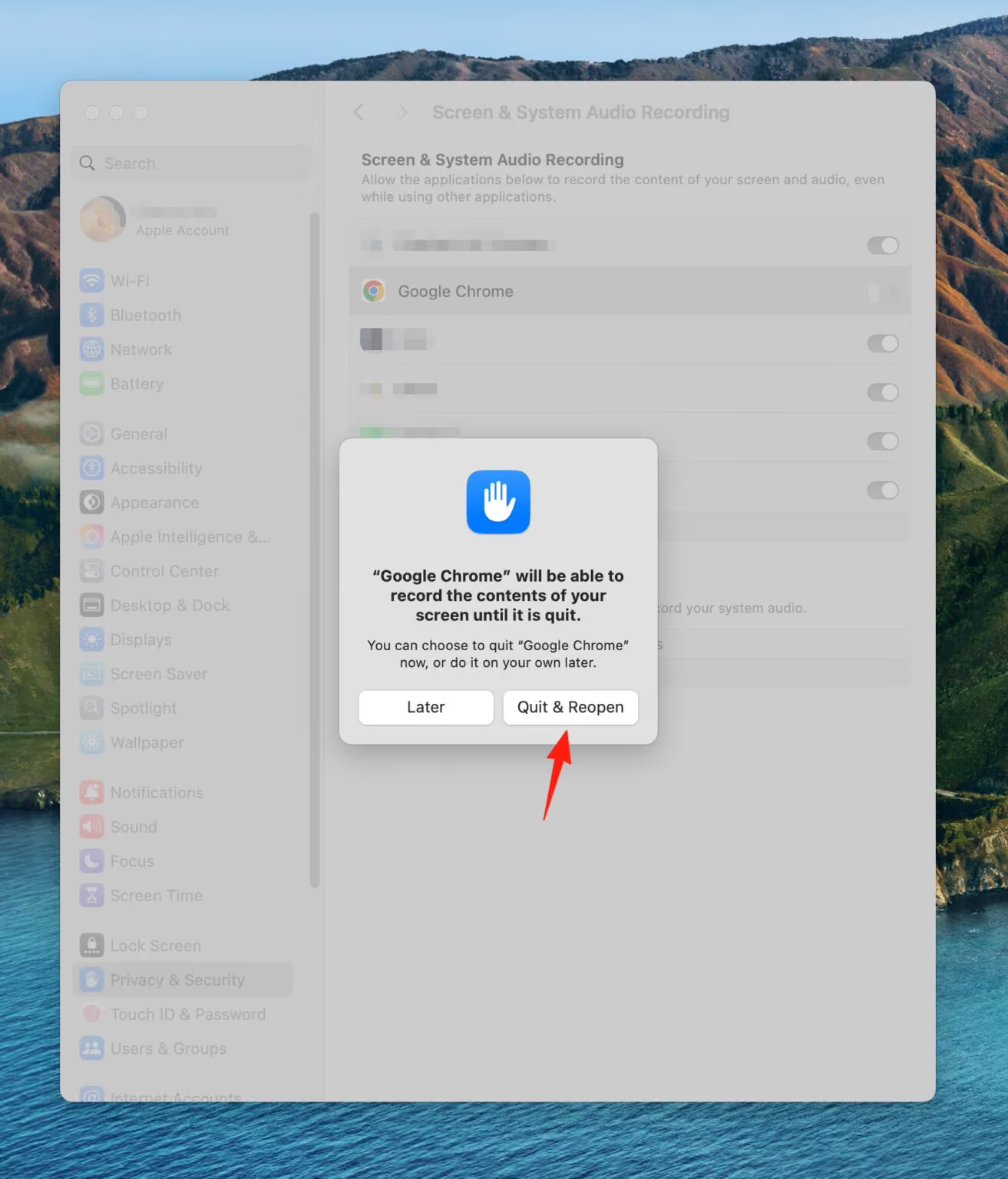
You’ll get a message saying Chrome must be restarted.
Click Quit & Reopen to activate screen sharing permissions.
Yes! When you’re asked to take a photo of your ID, you can block out sensitive information before submitting it.
After taking the photo, look for the Edit button. Then:
Click and drag over the area you want to block (like your ID number or address).
Release your mouse or finger, the selected area will be covered.
Once you’re satisfied, submit the edited photo.
This allows you to show only what’s only needed: your name and face.
If you’re having trouble logging in, can’t find your certificate, or need to request a refund or reattempt, please contact your activity or exam provider directly. Integrity Advocate does not manage: user accounts or login credentials, certificate delivery or pass/fail results, refunds, session resets, or reattempt approvals.
You can find your provider’s contact details on their website. Integrity Advocate only handles session verification once your activity has started.
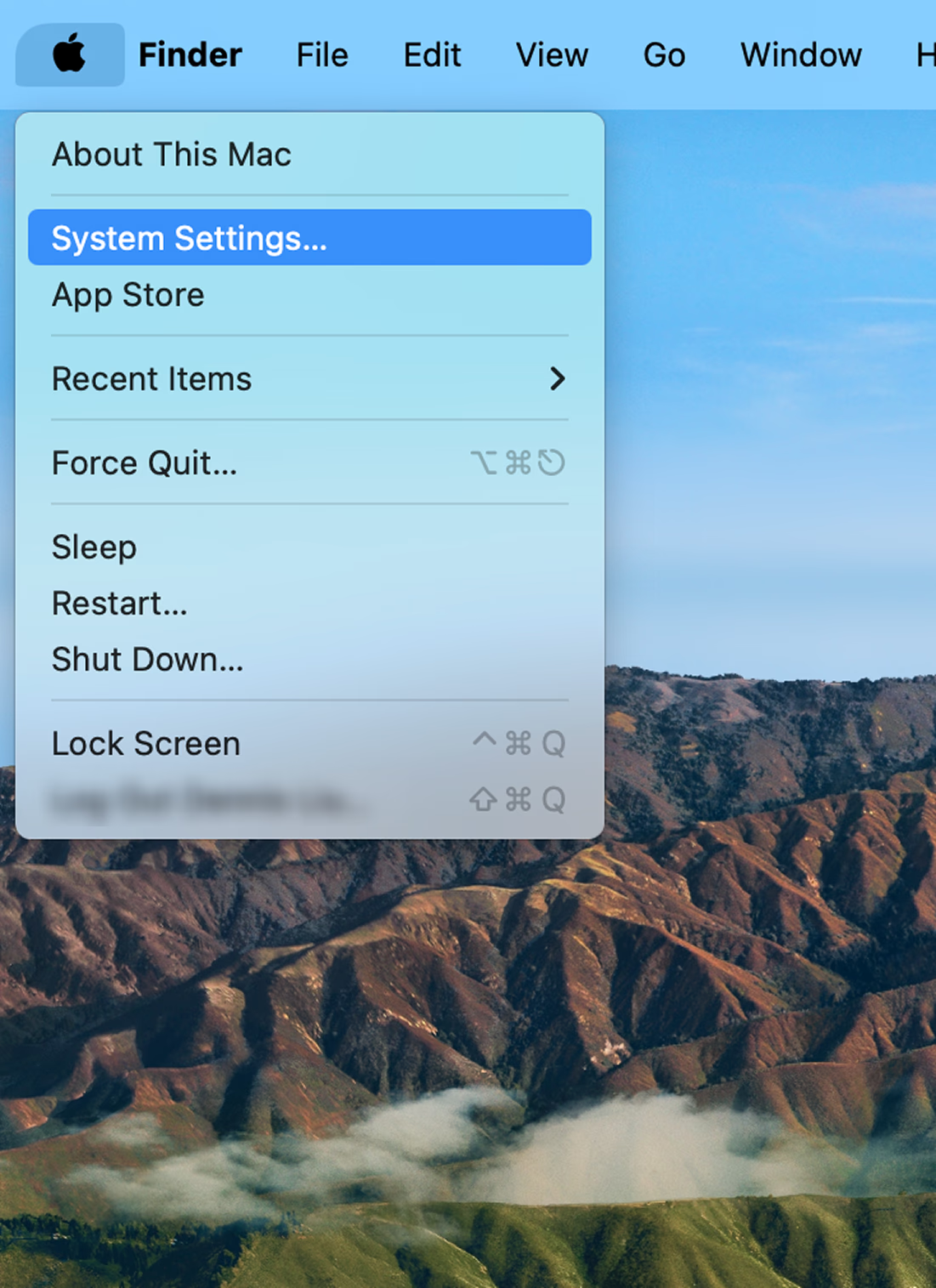
Before launching the exam/assessment, open System Settings by clicking on the Apple Icon.
Select Privacy & Security from the left bar list, then scroll down to find and select Screen Recording.
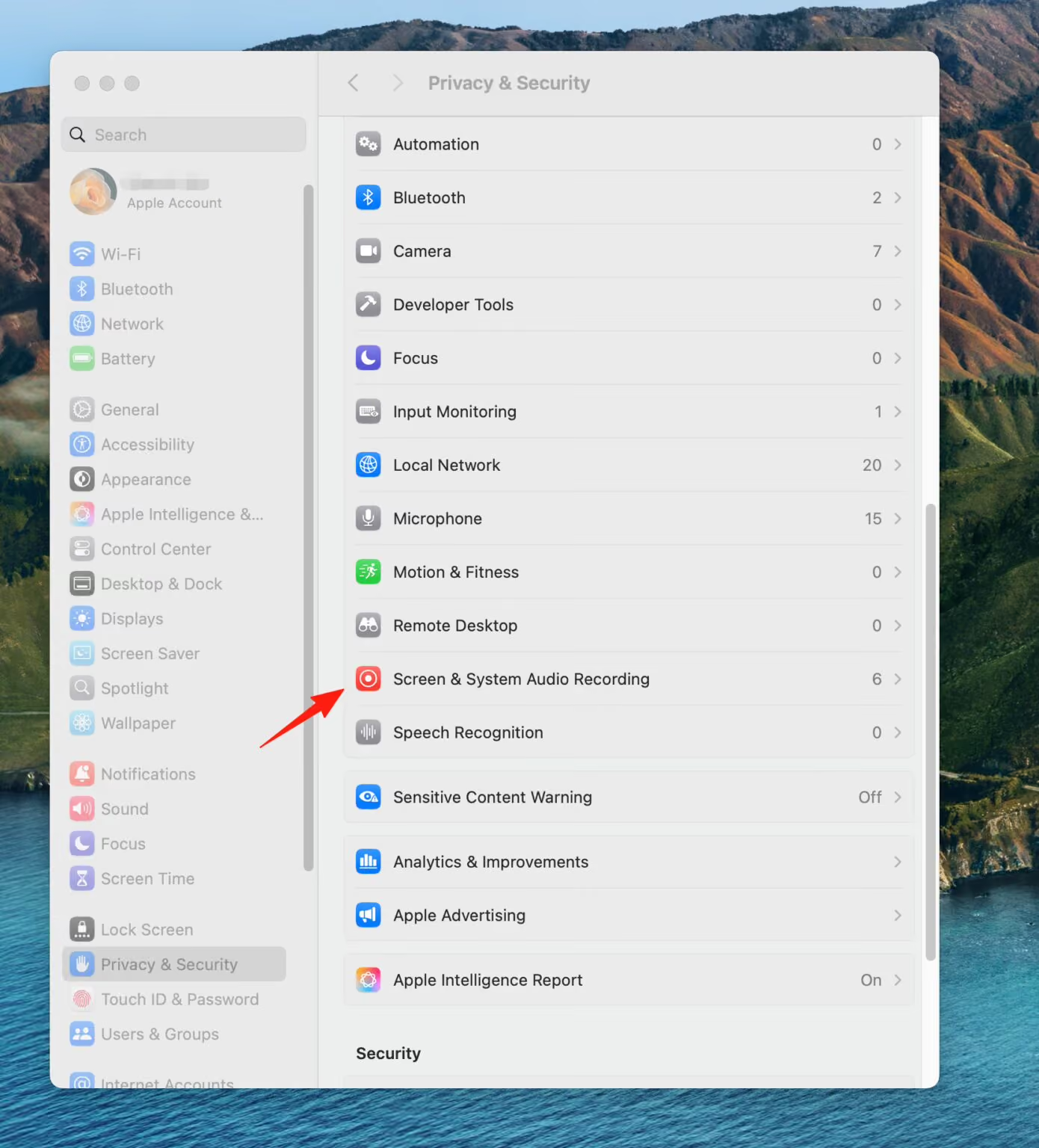
Under Screen Recording, toggle on Google Chrome.
When prompted, click Quit & Reopen. The change will not take effect and you will not be able to share your screen until you quit and restart your browser. (Applicable when Chrome is open/running while doing this troubleshooting).
Windows
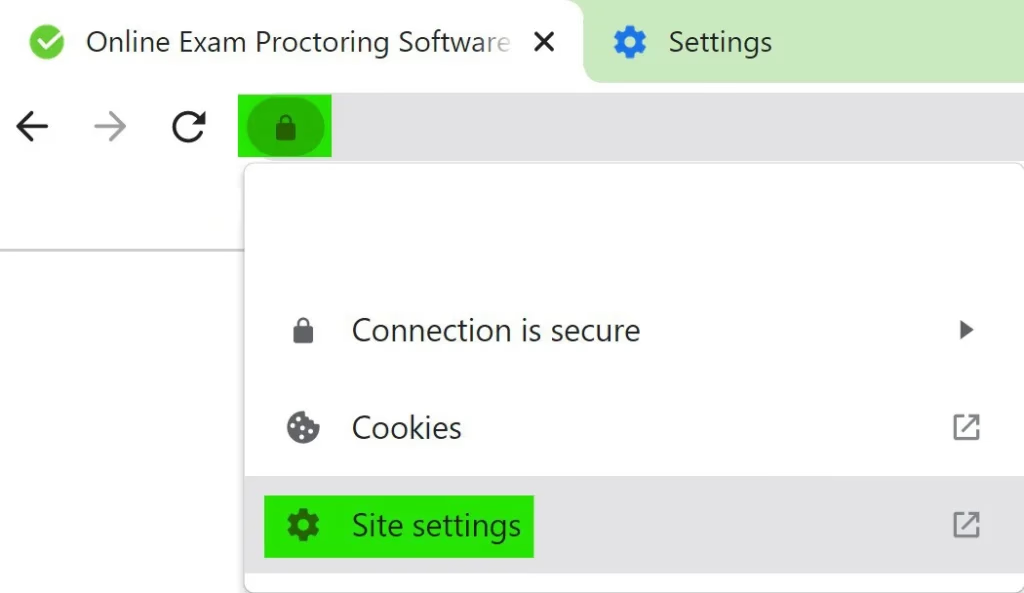
1. Click the lock icon in the URL/address bar and select ‘Site Settings’.
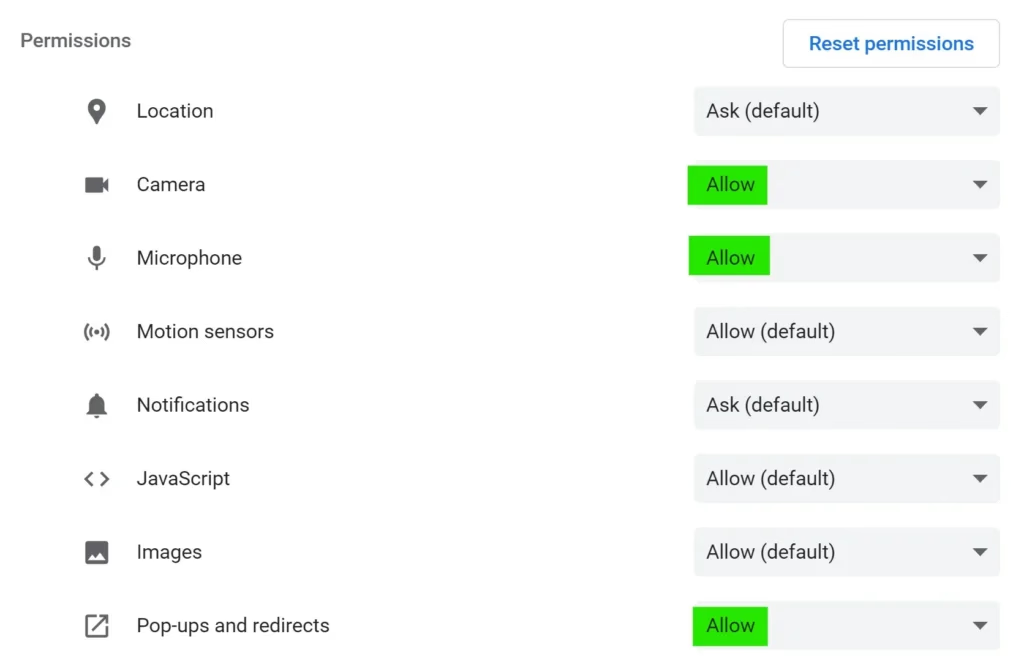
2. In the settings tab that opens, make sure the following permissions are set to ‘Allow’: Camera, Microphone, Flash, Pop-ups and Redirects.
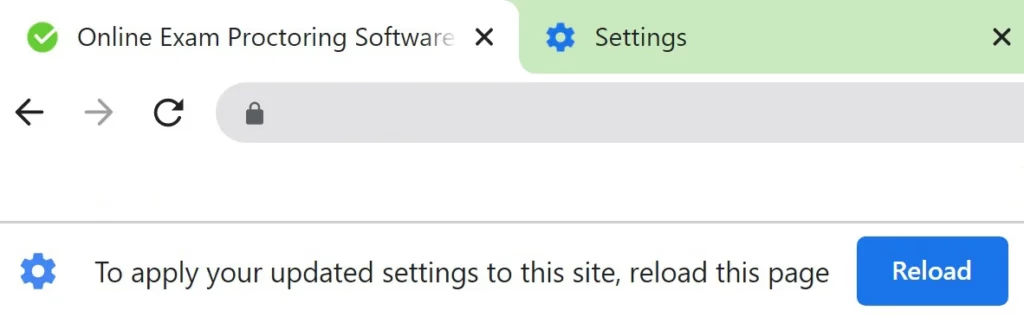
3. Return to the exam/assessment page. If you see a message below the URL/address bar asking you to reload the page, click the blue ‘Reload’ button. Then, launch your exam or assessment.
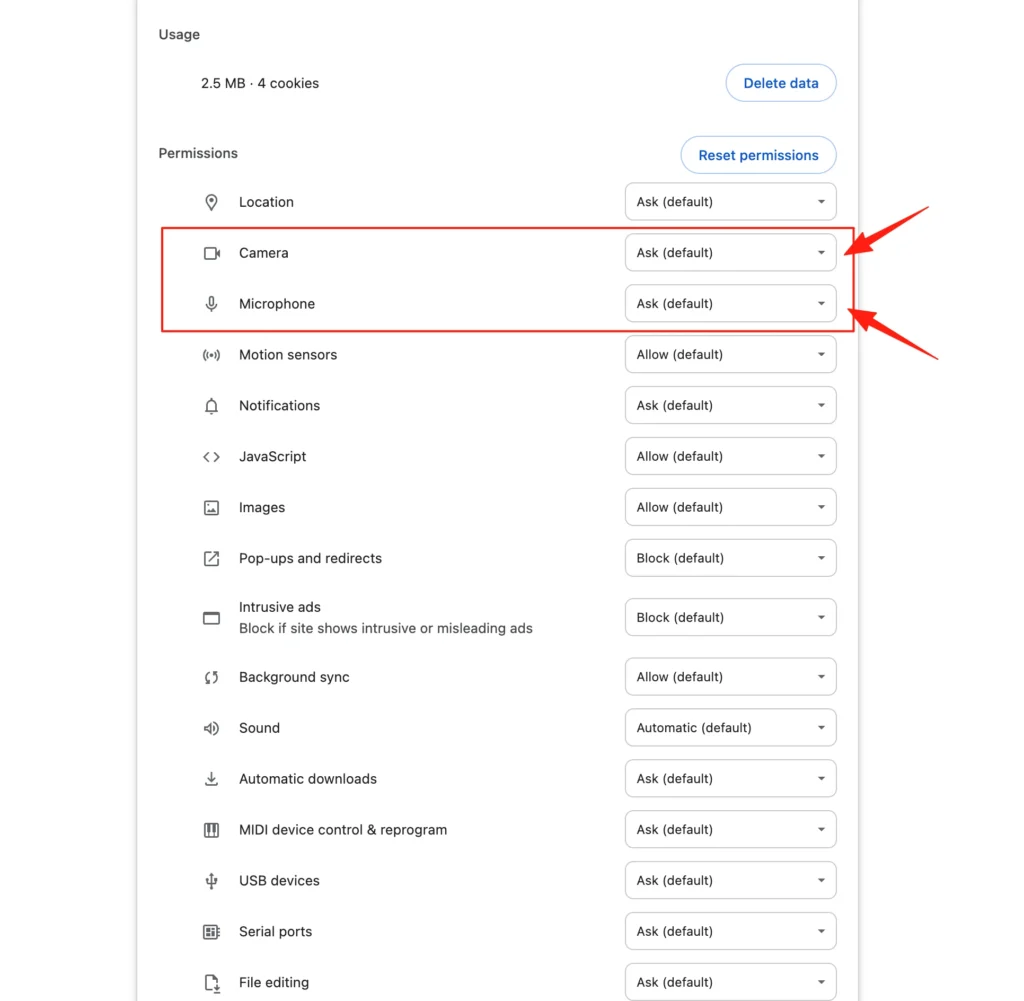
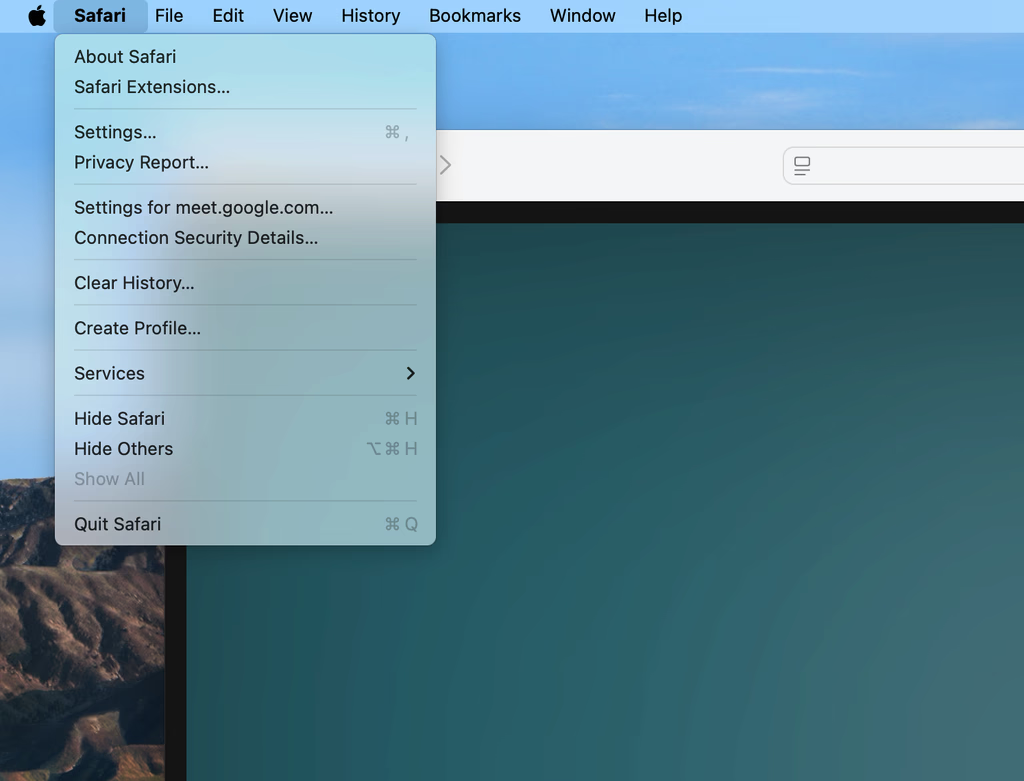
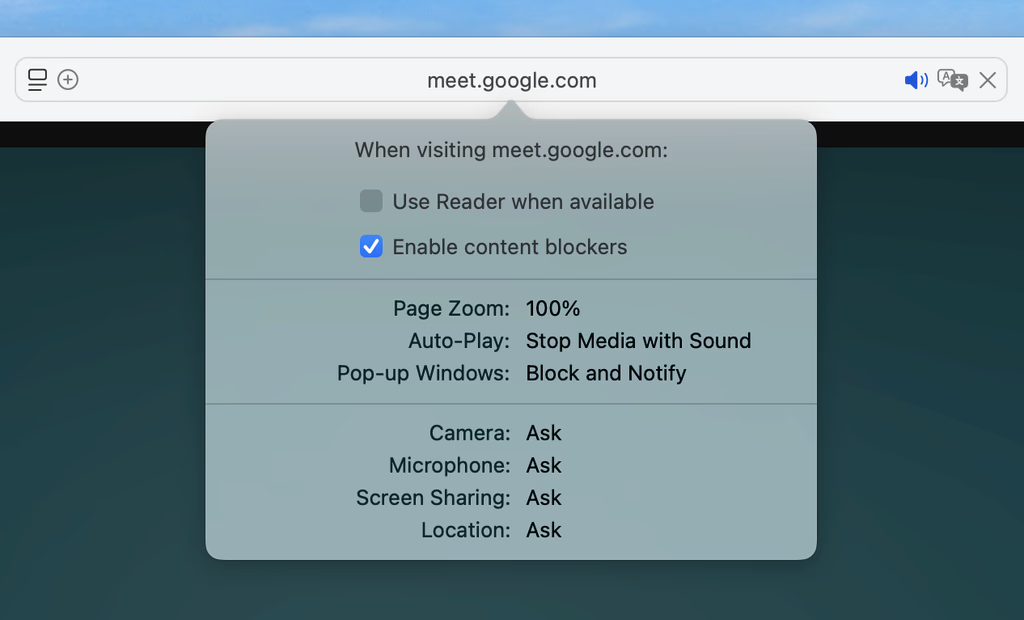
MacOS
1. Click on the ‘setting’ menu on the left of the URL address bar and then select ‘Site settings’.
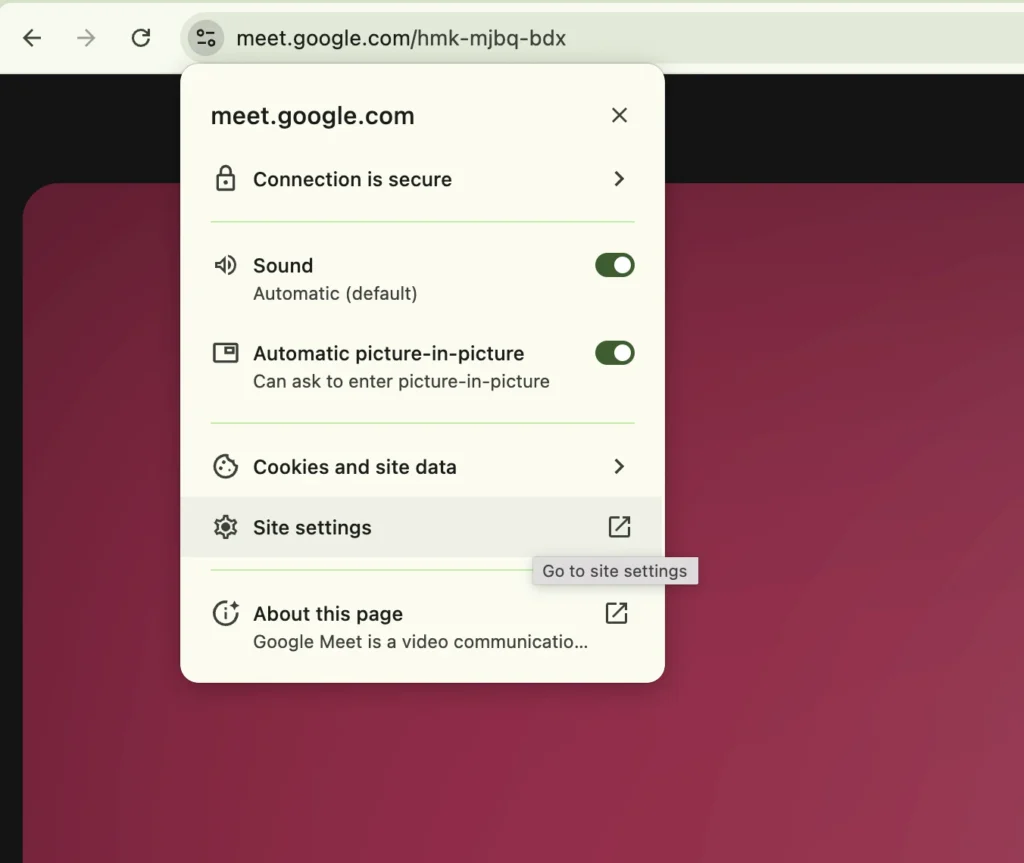
2. Change the ‘Ask’ beside the Camera & Microphone to ‘Allow’.
Android
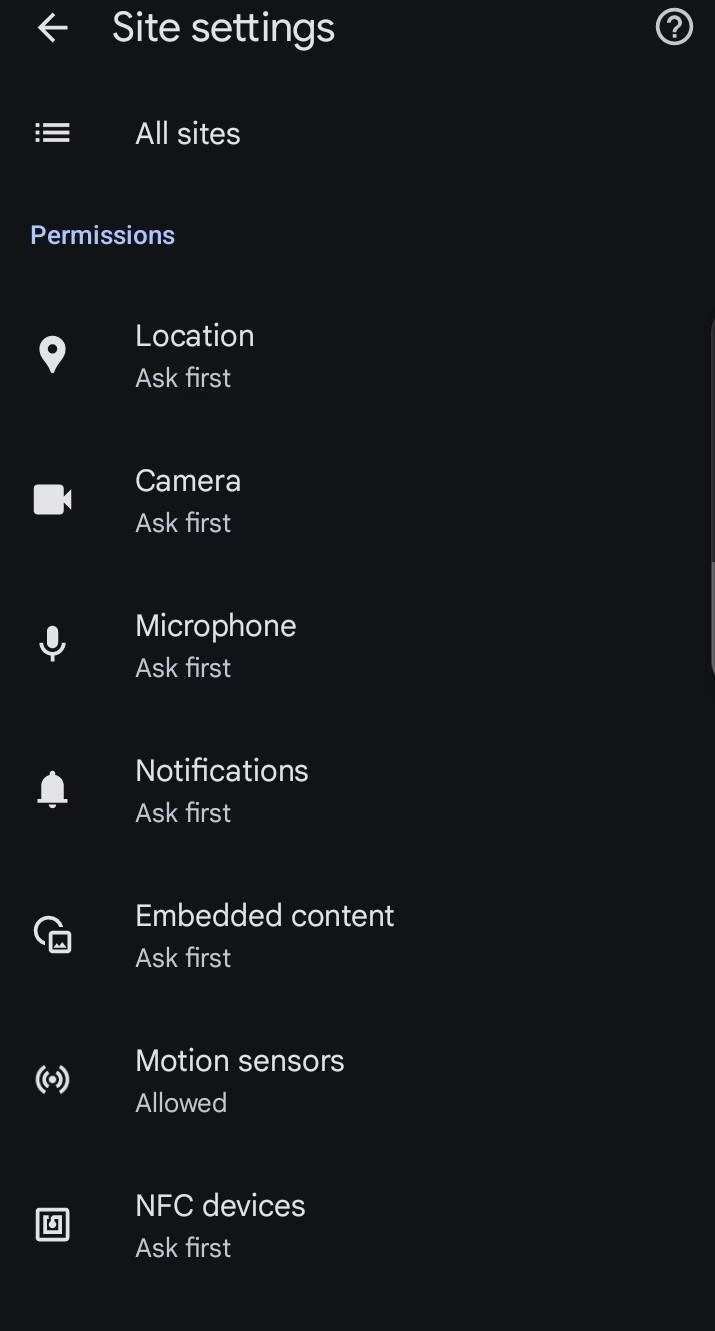
1. Tap the Site Permission Icon at the top left corner of the page.
2. Tap on both ‘Camera’ and ‘Microphone’ and change the status from ‘Ask first’ to ‘Allow’.
iOS
1. Open up ‘Setting’ on your phone and select ‘Privacy & Security’.
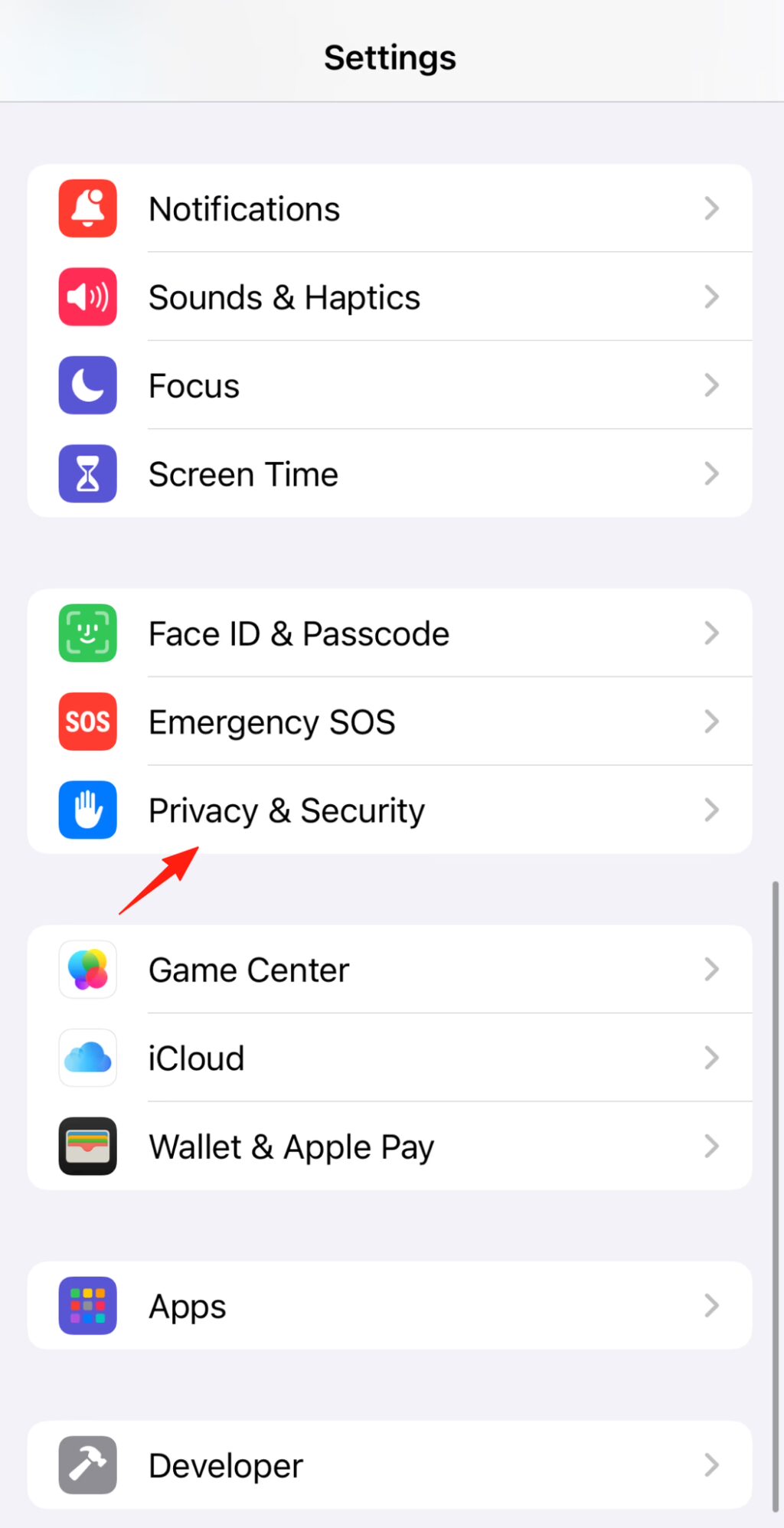
2. Go into ‘Camera’
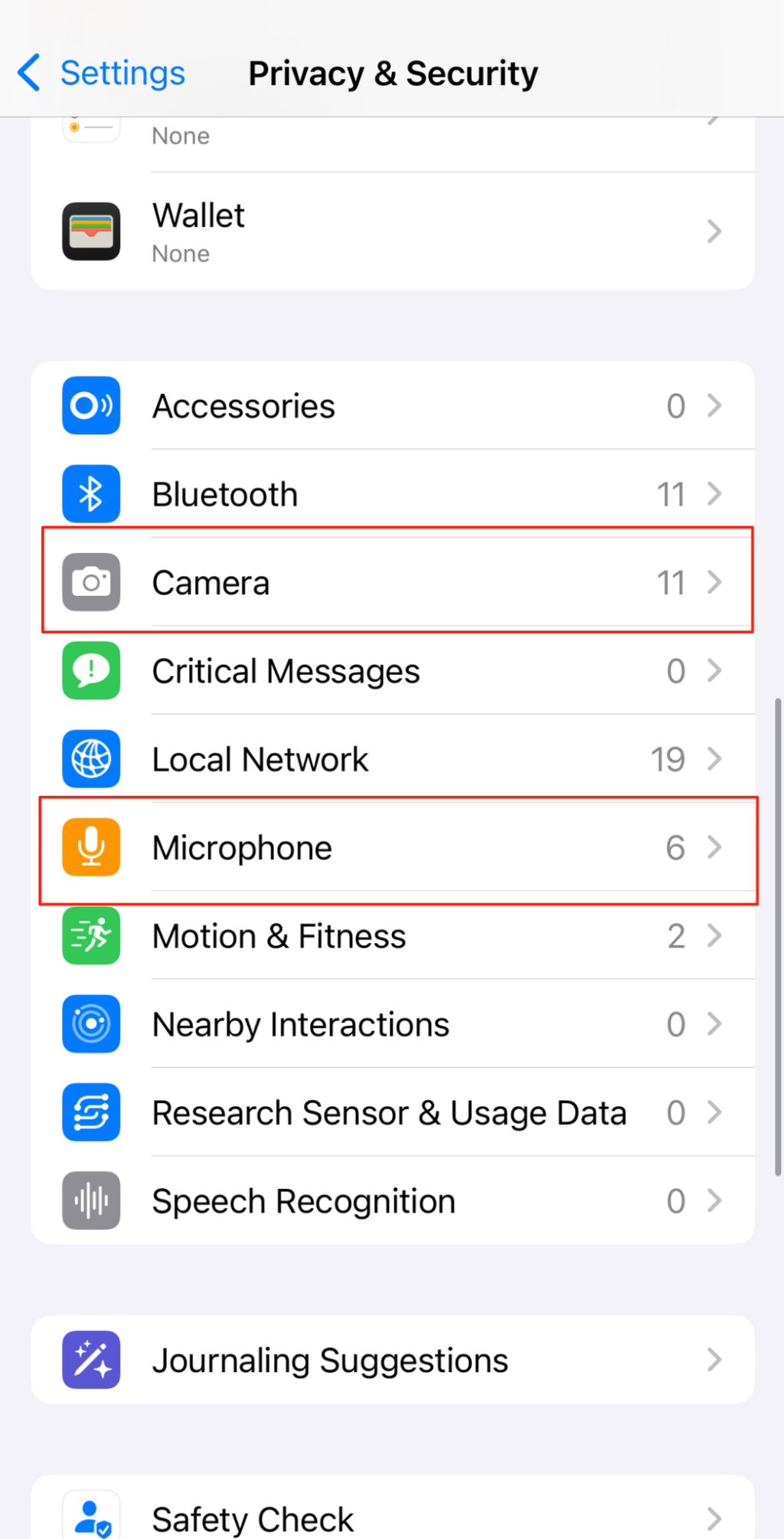
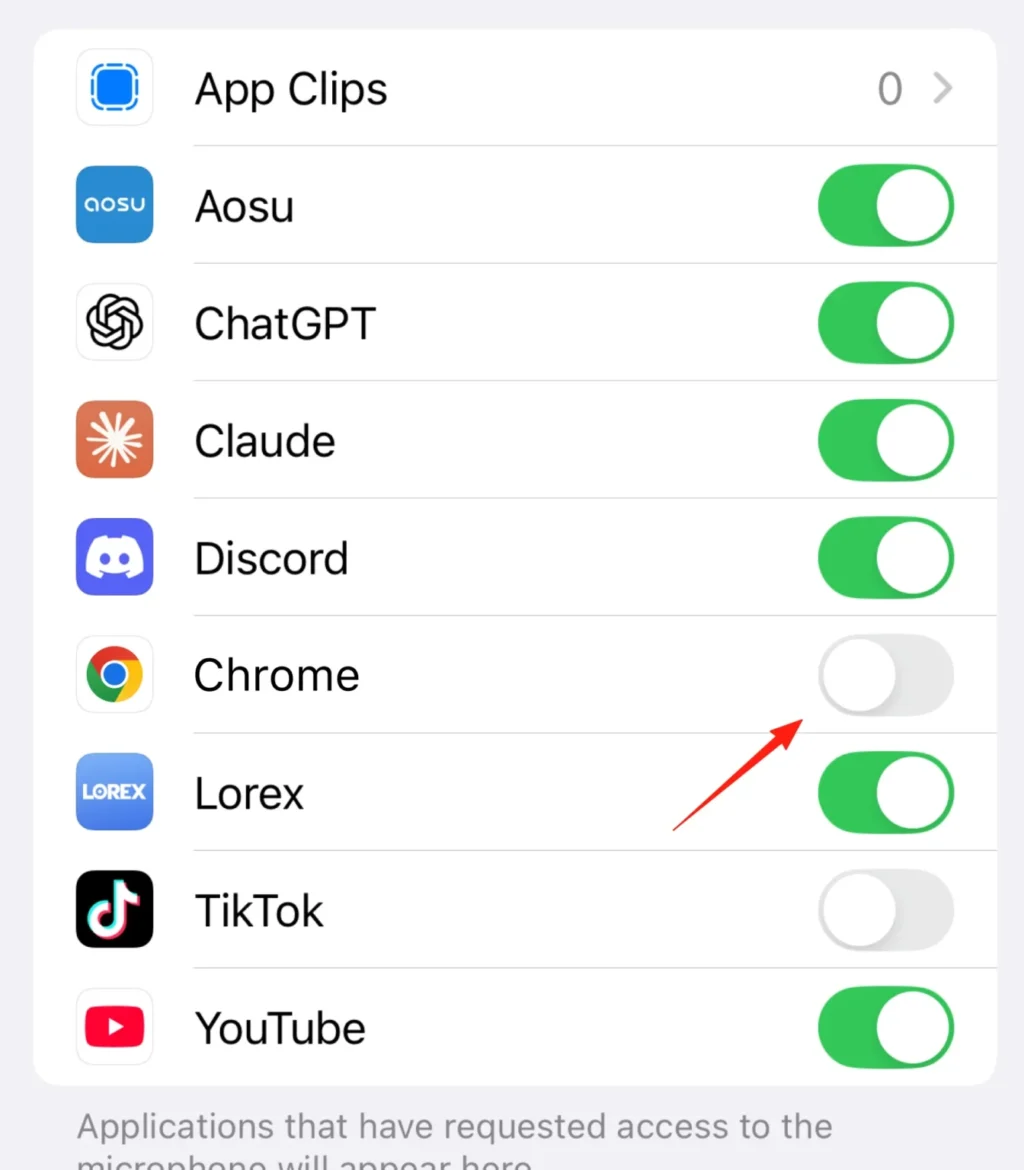
3. Find the ‘Chrome’ tab and turn the permission on to both the Camera page and Microphone page.
Click on the ‘Safari’ menu on the top left of your window and access ‘Setting’ for the website. (In the screenshot below it “Settings for meet.google.com”)
Change the ‘Ask’ beside the Camera & Microphone to ‘Allow’.
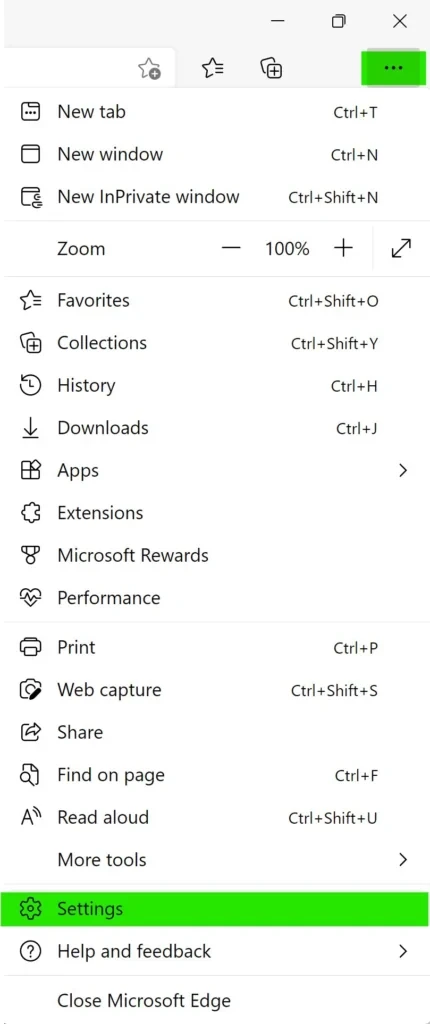
Click the three dots in your Edge browser and select “Settings.”
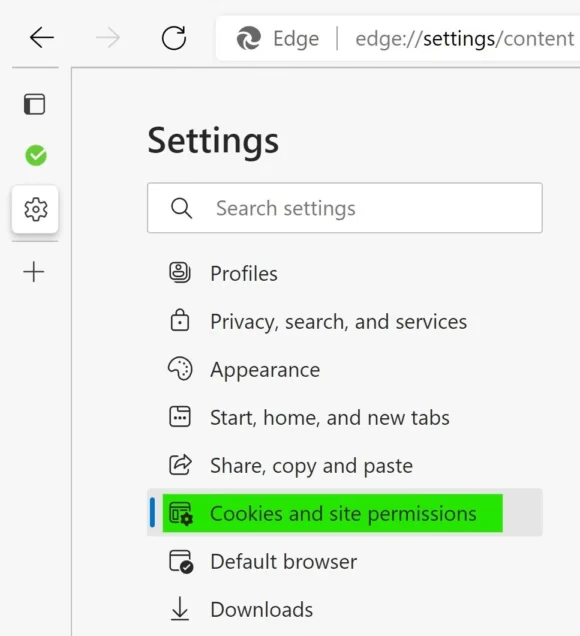
Go to “Cookies and site permissions.”
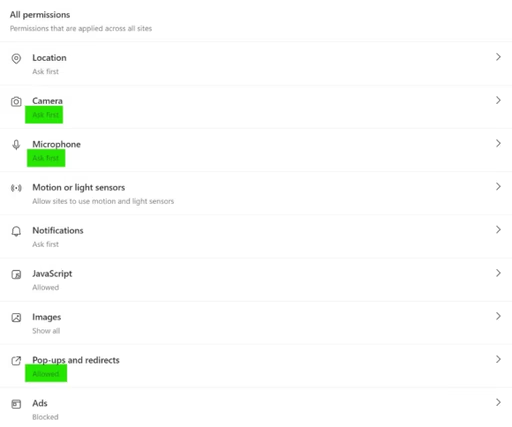
Select “Camera,” “Microphone” and “Pop-ups and redirects,” then adjust the settings as needed to match the instructions below.
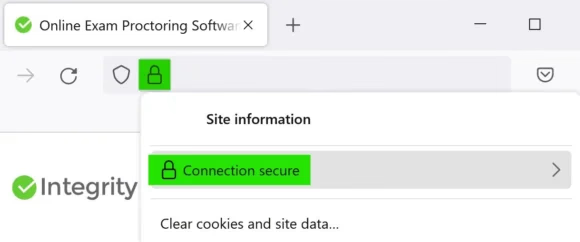
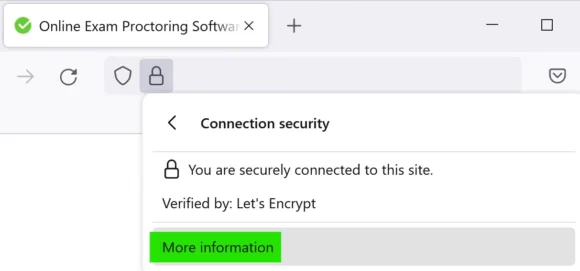
1. Before starting your exam or assessment, click the lock icon in the URL/address bar and select “Connection Secure.”
2. Click on “More Information.”
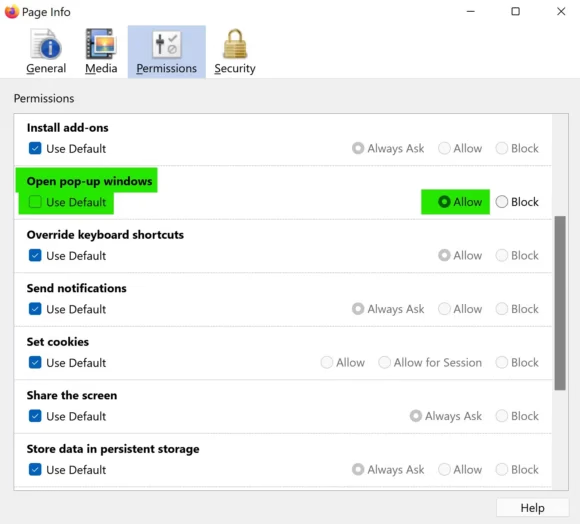
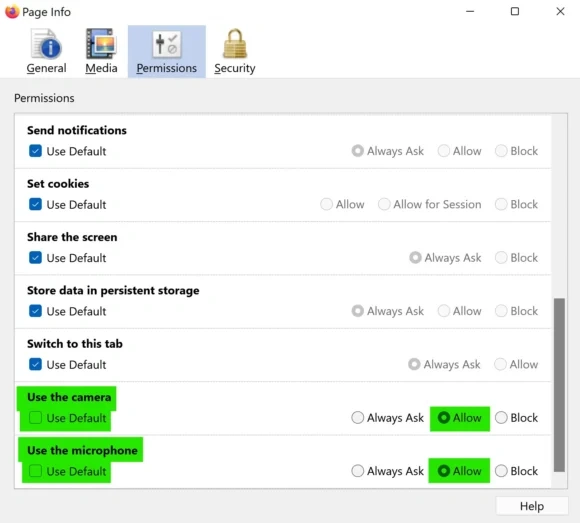
3. In the “Permissions” tab, allow the following: Open Pop-up Windows, Use the Camera and Use the Microphone. If the “Use Default” box is checked, uncheck it before selecting “Allow.”
If you received an email asking you to resubmit your ID, it means we couldn’t verify either your face or name usually due to unclear photos or missing details.
To resubmit:
Open the email and click the Resubmit button.
Use a mobile phone for clearer photos.
When retaking your ID and face photo
Make sure the ID is the one required by your activity provider.
Ensure your face and ID are fully visible, with no glare or blur.
Take the photo in a well-lit area with minimal shadows.
If you received an email about a name mismatch, it means the name on your ID doesn’t match the one registered for your session.
Here’s what to do:
Open the email and click the “View” button to see more details.
Double-check your name in your course, training, or learning platform account.
If there’s a typo, nickname, or other mismatch, contact your activity provider or course administrator. Only they can update your name or guide you on how to proceed.
Note: Integrity Advocate cannot make changes to your name. All updates must be handled by the organization running your course or exam.
If you received an email about a potential violation, it means there may have been activity during your session that didn’t follow the rules set by your activity provider.
Here’s what to do:
Open the email and carefully read the details provided.
If you have questions or believe there’s been a mistake, contact your activity or exam provider directly. They’re the only ones who can decide what happens next.
Note: Integrity Advocate only provides the proctoring service. Any decisions or actions regarding violations must come from your activity or training provider.
This message means you’re using an outdated browser (like Internet Explorer or older Safari versions) or an unsupported operating system (like Windows 7 or macOS High Sierra).
To fix it:
Update your browser to a supported version like Chrome, Edge, or Opera.
Update your operating system to a more recent version.
If updating isn’t possible, try using a different device.
Integrity Advocate works on most modern computers, phones, and tablets as long as your device has a working camera, microphone, and stable internet. However, certain monitoring features (like full-screen monitoring or screen capture) are only supported on desktop and laptop Chromium browsers.
To ensure a successful room scan, please follow this process:
1.Prepare Your Space Before starting the camera, clear your environment of any prohibited items:
- Smartphones, tablets, or smartwatches
- Notes, books, or papers
2. Perform the Scan Once prompted, you will need to perform two distinct movements with your webcam or laptop:
- 360° View (30 Seconds): Slowly rotate your camera in a full circle. Ensure you capture all four walls from floor to ceiling.
- Workspace View (30 Seconds): Tilt your camera down to clearly show your desk surface, your keyboard, and the area underneath your desk.
Nope! Admin Codes are only for administrators.If you’re asked for one during your session, just click the “X” to close the prompt and then click the green arrow to continue.
Integrity Advocate only collects the information necessary to verify your identity and ensure compliance with session rules.
You can find full details on our privacy practices here: https://integrityadvocate.com/privacy/
If you have questions or want to request changes to your data, contact: privacy@integrityadvocate.com
For general support: support@integrityadvocate.com