
using Integrity Advocate within D2L
D2L instructor guide
Support for instructors, educators and industry team members using Integrity Advocate within D2L. Your account manager will provide faculty training and support to ensure that everyone on your team has full visibility into the Integrity Advocate solution.
Important links and emails
Everything you need to get support, report an issue, or connect with the Integrity Advocate team.
Everything you need to get support, report an issue, or connect with the Integrity Advocate team.
Get help with login issues, assessments, technical questions, or using Integrity Advocate as a test taker.
Support center - live chat, helpful resources, system requirements
Support: support@integrityadvocate.com
Help resources: knowledgebase resources
What to Expect Links
Level 1 – ID Verification Only
Level 2 – ID Verification and Participation Monitoring
Level 3 – Advance Rule Options
Level 4 – Advance Rules and Screen Monitoring Options
Level 5 – Integrity Lock
Level 6 – Room Scan
Check the current status of Integrity Advocate services, scheduled maintenance, and any ongoing incidents. Find resources, guides, and training materials to help administrators manage Integrity Advocate within their LMS.
Support: support@integrityadvocate.com
Technical help: partners@integrityadvocate.com
Sales: sales@integrityadvocate.com
Check the current status of Integrity Advocate services.
Enable and manage Integrity Advocate
Learn how to enable and manage how Integrity Advocate is applied across your courses.
Learn how to enable and manage how Integrity Advocate is applied across your courses.
1. Create a custom homepage (if you haven’t already). For more information on creating a homepage please contact D2L.
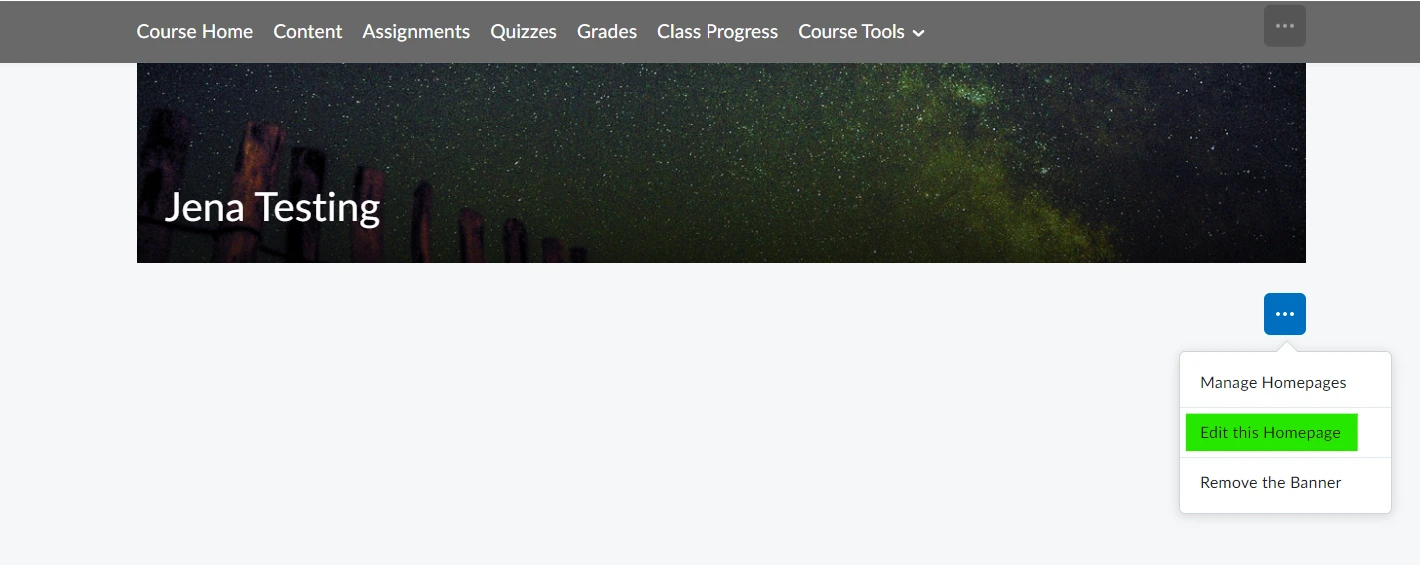
2. Click on the 3 dots at the bottom of the homepage and select Edit this Homepage.
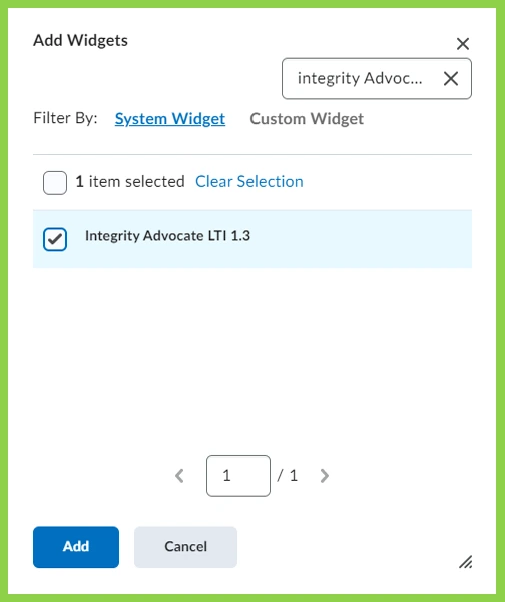
3. While editing the homepage, under Widgets, select Add Widgets. search for Integrity Advocate LTI 1.3 select it and click Add. Save and Close.
1. From within the Integrity Advocate Widget, click the Activities tab. Each quiz/assignment/content activity will appear in the list. Check the Enable Integrity Advocate box associated with the desired activity.
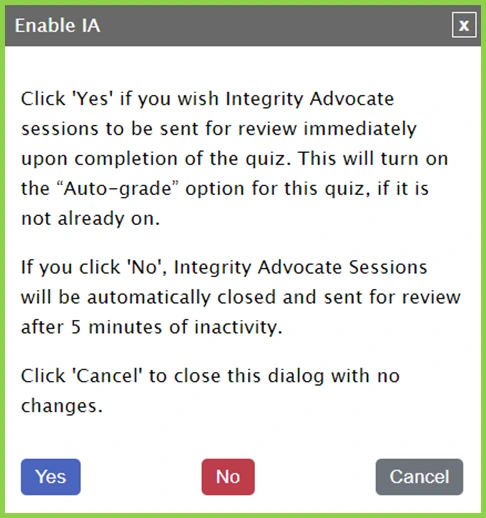
2. Next, select Yes if the quiz will be Auto graded (Quizzes only). Select No if your quiz does not use a Submission View (the last page of the quiz process in D2L) and is manually graded (i.e. long-answer questions).
3. Optional User Grade Item. Once the test session is complete you can review the session results of each Learner via the Integrity Advocate widget on the course homepage. Additionally, you can add a session status column in the course Gradebook. Check Use Grade Item, if you would like to create an IA Status grade column in the gradebook. This column will be another way to view if the learner Passed or Failed the session rules.
4. Select the Rules level.
DEMO: Use this level for Learner pre-testing. No data is collected but allows Learners to test their system. It is strongly recommended that a DEMO quiz be placed in the course to allow Learners to test for compatibility.Level 1 to 6: Learn more about rules on the Admin Support page.
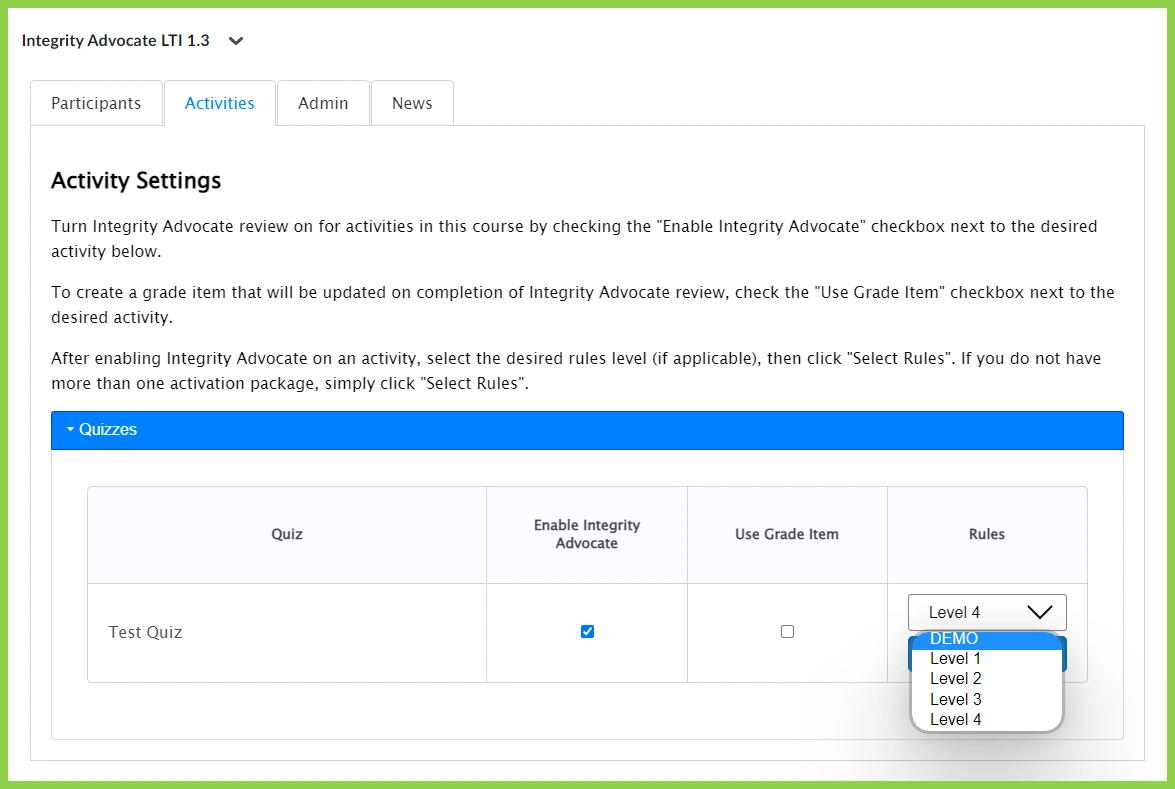
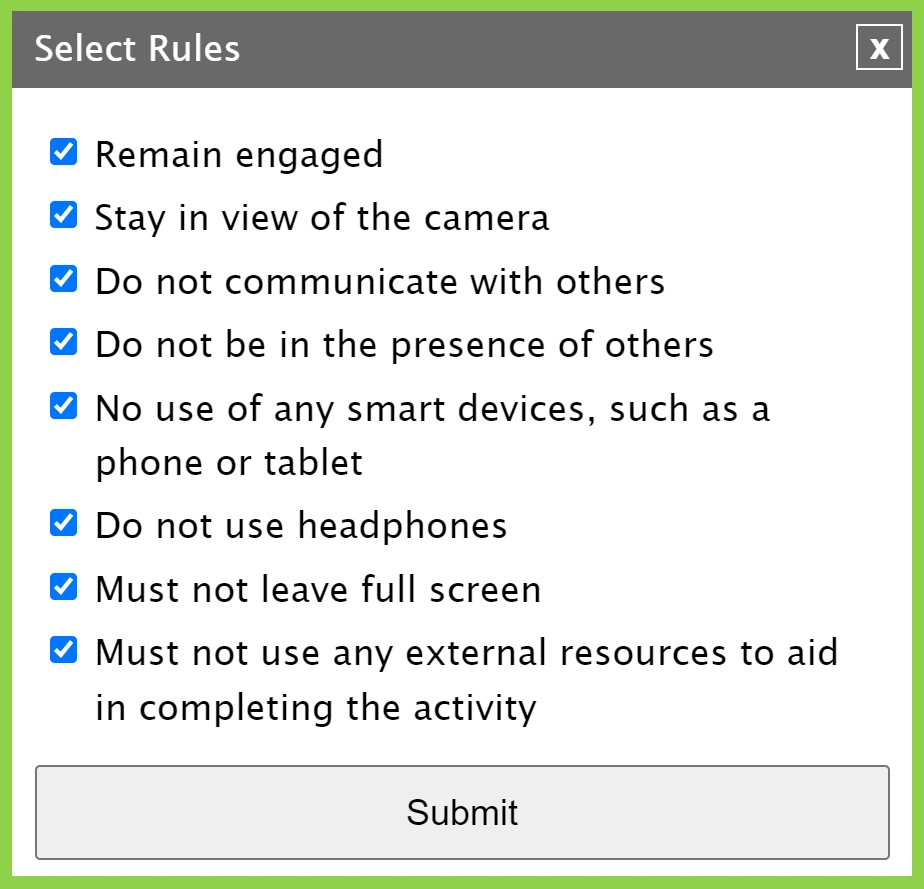
5. Click the Select Rules option to set the rules for the quiz, then Submit. Learners will be informed of the chosen rules at the start of the quiz.
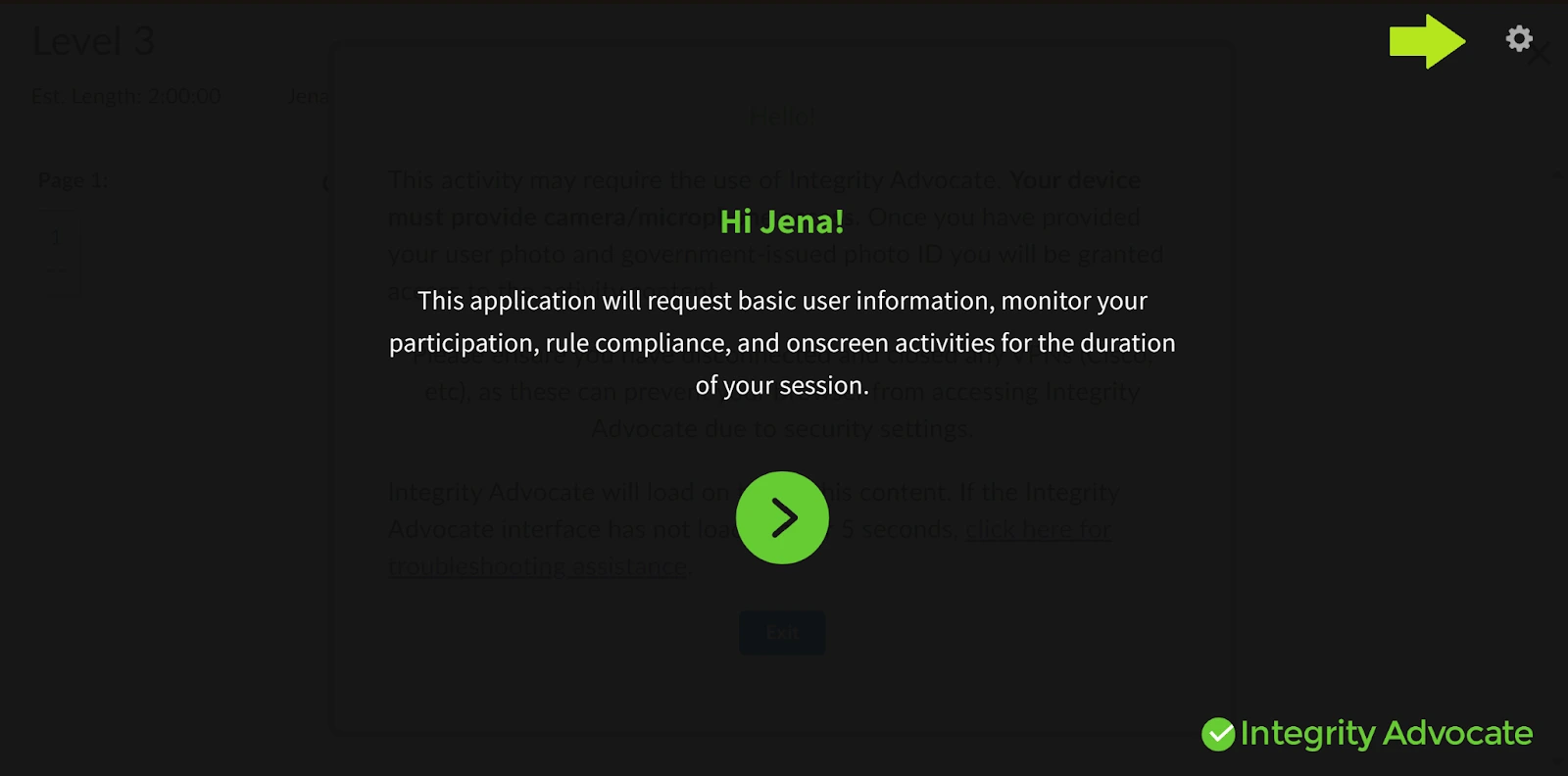
When a bypass code is entered during the Integrity Advocate pre-check process, the Learner will be allowed to proceed without IA running during the test session.
1. Once the learner is prompted for the Integrity Advocate pre-check, click the gear icon located in the upper right corner.
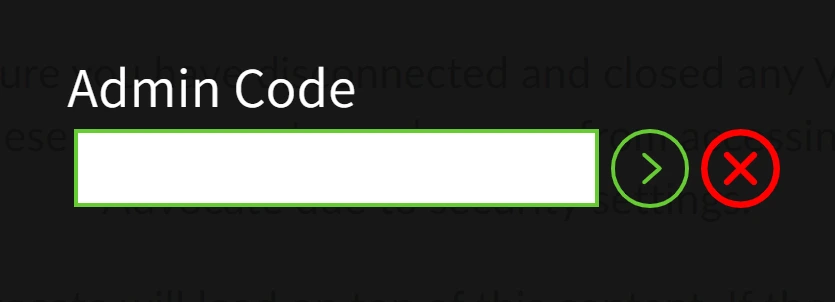
2. Manually enter the bypass code for the learner, then click the green checkmark to continue. The Learner may begin the exam.
To request/delete bypass codes contact partners@integrityadvocate.com.
Review proctored results
Review participant sessions, identify potential rule violations, manage identity verification issues, and update results when needed.
Review participant sessions, identify potential rule violations, manage identity verification issues, and update results when needed.
1. From within the IA Widget on the course homepage click the Participants tab.
2. Click on the exam being reviewed.
3. Click the Select Status dropdown and filter on Invalid (Rules) or Invalid IDs.
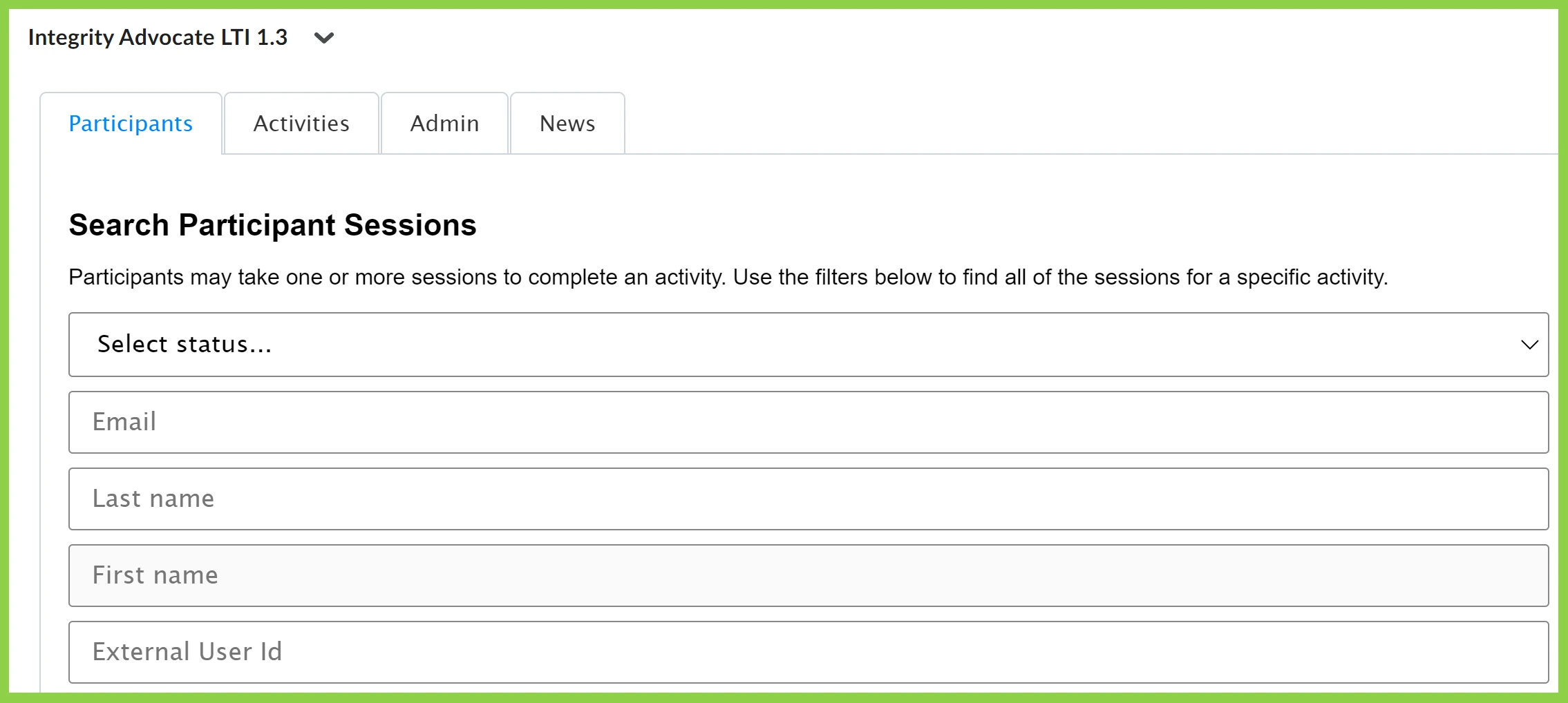
There are four possible statuses that you will see in the Integrity Advocate widget under the Participants tab.
1. In Progress. If there is an End date and time, the session is being reviewed. If the end date and time is “Incomplete”, the participant is currently taking the quiz, or they began the session but left without completing (ie, closed the browser without closing the Integrity Advocate session).
2. Valid. The session is complete with no violations.
3. Invalid (ID). The participant has submitted an unreadable or non-approved ID and needs to resubmit. Integrity Advocate emails the Learner directly asking for them to resubmit their ID. This link can also be found in the Participant’s tab. Search for the participant and under Status, select Resubmit ID. This will provide a link to send to the participant.
4. Invalid (Rules). There has been a violation of the selected rules for the quiz.
Review Status for Learner attempt and Invalid statuses by clicking the participant’s name to access Learner images taken during quiz.
Note: Images will appear with notes indicating potential flags.
Review Status for Learner attempt and Invalid statuses by clicking the participant’s name to access Learner images taken during quiz.
Note: Images will appear with notes indicating potential flags.
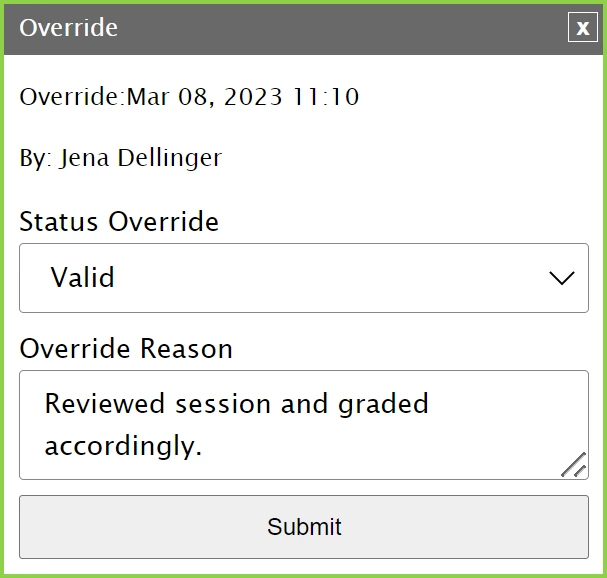
You can Override a Valid, Invalid (ID), or Invalid (Rules) status from the Integrity Advocate widget.
1. Find the participant in the Participants tab, then click Override under their current status.
2. Click the dropdown under Status Override, select the new status, and enter a reason. Click Submit.
3. Click OK when prompted.
4. Click Override again to see the reason and who made the change.
Note: If the Use Grade Item is selected in the widget for the quiz, click Update Grade to update the Gradebook for the Learner attempt. The IA Status column associated with the quiz will update.
Manage access to widget tabs
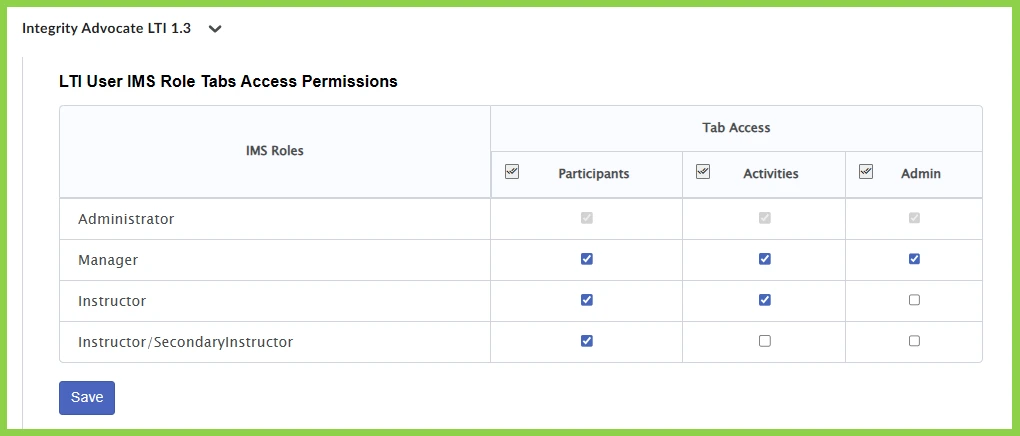
Control which user roles can access the Participants, Activities, and Admin tabs within the Integrity Advocate LTI widget. Adjusting IMS role permissions allows you to manage access based on each user's responsibilities.
Control which user roles can access the Participants, Activities, and Admin tabs within the Integrity Advocate LTI widget. Adjusting IMS role permissions allows you to manage access based on each user's responsibilities.
1. Access the Admin tab on the Integrity Advocate widget.
2. Scroll down to the LTI User IMS Role Tabs Access Permissions chart.
3. Adjust the permissions for the IMS Roles to access the Participant, Activities and Admin tab.
4. Click Save.
Run a quick practice test
Complete a practice test to check your technical requirements and avoid last-minute issues during your assessment. We'll check your camera, microphone, browser compatibility, and internet connection to help ensure everything is working before test day.
No data is collected or recorded during the practice session.

Live chat
Chat with our assistant for instant answers and be connected to a person if additional help is needed.
Email support
Fast, expert and nearly effortless. With industry-leading response times, we’ve got you covered.
Help center
Find answers to common questions, troubleshooting steps, and guidance for using Integrity Advocate.